YouTube · Monetization · Guides · OBS Studio
YouTube Super Chat Requirements: Eligibility and Setup
By Yaseen Khatib · November 2, 2026
The requirements for YouTube Super Chat are: join the YouTube Partner Program (YPP), be 18 or older, live in a country where Super Chat is available, link an AdSense account for payouts, and stream with live chat enabled on content that isn’t set as “made for kids” or age‑restricted. Once you’re eligible, you turn Super Chat on in YouTube Studio under Monetization (Supers) and in the Live Control Room when you go live.
youtube super chat requirements
Here’s how eligibility works, in plain language:
- You must be in YPP. In most regions this means meeting either of these paths: 1) 1,000 subscribers + 4,000 valid public watch hours in the last 12 months, or 2) 1,000 subscribers + 10M eligible public Shorts views in the last 90 days. In some countries, YouTube offers earlier access to fan funding (like Super Chat) with lower thresholds (for example, 500 subscribers, a few recent uploads, and lower watch‑time/Shorts targets). Check the Earn/Monetization tab in YouTube Studio for your channel’s exact criteria.
- You must be 18+ and in an eligible country/region. Viewers also need to be in a supported location to send one.
- Your stream must have live chat on, not be “made for kids,” and not be age‑restricted. Super Chat doesn’t appear on those videos.
- You need a linked AdSense account for payouts and to accept the relevant terms.
Once that’s true, you can enable Super Chat in Studio and it’ll appear on your live streams and Premieres. Regular uploads use Super Thanks instead of Super Chat.
Turn it on in YouTube Studio (what to click and check)
- Open YouTube Studio and go to Monetization (Earn) → the Supers section. Enable Super Chat and Super Stickers.
- Link or confirm your AdSense account and complete any required agreements.
- When scheduling your stream, confirm: live chat is enabled, the video is not set to “made for kids,” and monetization is on. In the Live Control Room, you’ll see a Supers toggle—leave it on.
- After going live, send yourself a test via the “test widget” of your alert service (see below) or ask a mod to confirm the banner appears in chat.
If you don’t see the Supers tab, you’re not yet eligible in your region or you haven’t been admitted to YPP on your channel.
The setup that works for everyone: OBS + free alert box
Viewers expect an on‑screen reaction when they send a Super Chat. The simplest, free setup:
- Create the alert
- Use a free alert box from a mainstream alert provider. Create a Super Chat alert, pick a layout, set fonts and sound.
- In its dashboard, copy the alert URL.
- Add it to OBS
- In OBS, add a Browser Source and paste the alert URL. Set a sensible width/height (e.g., 800×600) and place the source above your gameplay/camera in the source list so it’s visible.
- Lock the source so you don’t nudge it mid‑stream.
- Test and refine
- Use the alert service’s “Test Super Chat” to verify it animates and plays sound.
- Keep notification duration between 6–8 seconds so stacked alerts don’t flood your scene.
- Duck game audio so alerts are clear
- Add a compressor filter to your gameplay or music audio and set the sidechain/ducking source to your alert source or alert audio. When an alert fires, gameplay/music dips a few dB and the alert stays audible without blasting your mix.
- Reduce delay so you can react fast
- In YouTube’s stream settings, choose a lower stream latency (Low or Ultra Low) if your network is stable. This shortens the gap between the viewer’s payment and your on‑air reaction. Use a wired connection if you can.
Tip: if you also want your chat on screen, use your browser’s pop‑out chat and add it to OBS as a Browser Source. See Popout Chat Masterclass for reliable methods: Popout Chat Masterclass for Streamers
Know before you go live: common blockers
- Age settings: If you mark a stream “made for kids” or it becomes age‑restricted, Super Chat is disabled for that video.
- Country mismatch: If you’re eligible but viewers can’t send a Super Chat, they might be in a region where it isn’t offered or on a device/payment method that isn’t supported.
- Monetization toggles: If you schedule streams with a template, double‑check that monetization and Supers didn’t get turned off for this specific event.
- Chat disabled: No live chat, no Super Chat. Make sure chat is enabled at the channel and video levels.
Track and react like a pro (free, low‑friction methods)
- On‑screen acknowledgements: Keep your alert in a consistent corner so your camera frame doesn’t cover it. If you use multiple scenes, duplicate or nest the alert source so it appears everywhere.
- Scene reactions: If you want your lights to flash or your camera to punch‑in on big Super Chats, you can use an automation tool that listens to YouTube events and talks to OBS over WebSocket (built into OBS). The general flow is: connect the tool to OBS via WebSocket, subscribe to Super Chat events, set a rule with an amount threshold, and have it switch scenes or toggle sources. For OBS WebSocket setup basics, see: How to Set Up OBS WebSocket on Windows (2026)
- Financial tracking: Your alert service shows event history, and your YouTube Studio shows Supers revenue in the Revenue tab. For a creator‑focused workflow on saving values by currency and timestamp, see: YouTube Super Chat Tracker: See Your Revenue Live
- Clip smarter: Super Chats often cluster with chat spikes. If you want to understand those spikes, this primer helps: What Is Chat Velocity? The Clip-Worthy Metric
Troubleshooting checklist (quick wins)
- “I’m in YPP but the Supers panel is missing.” Rollout and eligibility vary by region and account type. Check Studio → Earn. If it’s still missing, you’re likely not eligible for fan funding in your country yet or haven’t completed required agreements.
- “Viewers say the button is gone.” Confirm the stream isn’t marked for kids or age‑restricted, and that chat is on. Also check that the viewer is using a supported device/location.
- “Alerts aren’t showing in OBS.” Ensure the alert’s URL is correct, the Browser Source isn’t hidden by other sources, and your overlay/profile is the one actively used on that scene. Test from the alert service.
- “Huge CPU hit during alerts.” Animated alerts are browser‑rendered. Keep animation complexity modest and cap Browser Source FPS if needed. If you record and stream on one PC, consider using hardware encoding to leave headroom for overlays.
How this is solved in streamerOS
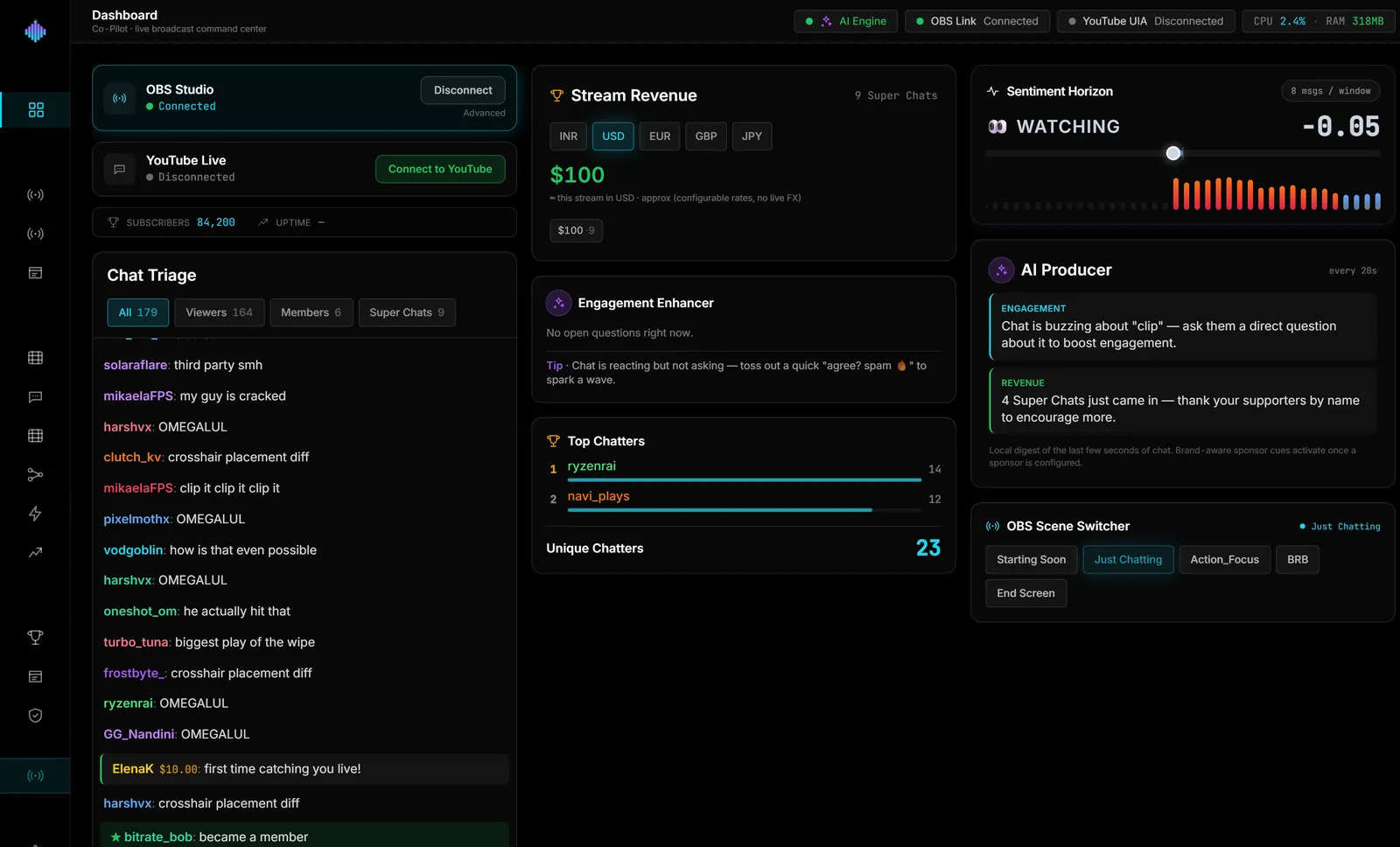
The Auto‑Hype Director can react to fan funding without cloud bots: its triggers are chat velocity and Super Chat amount, so you can, for example, cut to a “Thank You” scene when a Super Chat ≥ a threshold arrives, or play a local sound with a cooldown so it never stacks. The Live Cockpit also records every Super Chat into a local ledger with exact per‑currency totals. It reads your YouTube chat from the browser on your PC and never posts to chat.
Honest limits: Windows only; $29 one‑time after the free trial; launches February 2027. See a live demo in your browser (nothing to install): https://demo.streamerosai.com — and founding members who pre‑register at pre-register get the beta first.
Frequently Asked Questions
-
Do I need 1,000 subscribers to turn on Super Chat? If your country has standard YPP, yes—Super Chat requires joining YPP, which commonly needs 1,000 subs plus watch‑time or Shorts thresholds. Some regions have earlier fan‑funding access with lower thresholds; check Studio → Earn for your channel.
-
Why can’t I enable Super Chat on my stream? Most often: the stream is set as “made for kids,” is age‑restricted, monetization is off for that event, or your channel hasn’t completed YPP/AdSense steps. Also confirm you and your viewers are in supported regions.
-
Is Super Chat available on Premieres or only live? Super Chat works on live streams and Premieres. Regular uploads don’t use Super Chat; viewers tip on uploads with Super Thanks instead.