Guides · Twitch · YouTube · OBS Studio
How to Read Chat While Streaming on One Monitor
By Yaseen Khatib · October 23, 2026
The simplest way to read chat while streaming on one monitor is to run your game in borderless windowed mode and keep a popout chat window pinned on top of it. Full-screen games hide every other window, so borderless is the switch that makes everything else possible. If you can't give up any screen space, read chat on a phone or tablet instead. Five options are below, from free and quick to the most hands-off.
Why this is hard on one monitor
Most games run in exclusive full-screen by default. In that mode the game owns the display, and anything else you open — a browser, a chat window — sits behind it. Alt-tabbing out to read chat costs you a few seconds of play every time, and viewers see you look away.
The fixes all work around that one fact.
1. Borderless windowed + a popout chat on top
This is the setup most single-monitor streamers settle on.
- In your game's display settings, choose Borderless or Windowed (borderless) instead of Full-screen.
- Open your chat as a popout window:
- Twitch:
https://www.twitch.tv/popout/YOURCHANNEL/chat?popout= - YouTube: open your live stream, then use the chat's menu to pop it out.
- Twitch:
- Resize the chat to a narrow strip and place it at the edge of the screen.
- Keep it on top of the game. Windows does not do this on its own; Microsoft's free PowerToys has an Always On Top tool (default shortcut Win + Ctrl + T) that pins any window above the others.
In OBS, capture the game window rather than the whole display, so viewers never see the chat strip.
Best for: most games. Borderless costs little or nothing in performance on modern Windows.
2. Dock chat inside OBS
OBS can show a web page as a dock inside its own window. Add your popout chat URL under Docks → Custom Browser Docks (in older OBS versions this lives under View → Docks). Chat then sits next to your scenes and stream controls.
Best for: streams where OBS is visible on screen anyway — Just Chatting, art, coding. It doesn't help during a full-screen game, because OBS is hidden too.
3. A second device
A phone or tablet on a stand next to your monitor, running the Twitch app or YouTube Studio, gives you chat without touching the game at all.
Best for: competitive games where you won't give up a single pixel or risk an overlay. The downside is moving your eyes off the screen.
4. Have chat read to you
Text-to-speech tools read new messages aloud, so you can hear chat without looking. Many chat bots and alert tools offer it. Keep it to messages that matter — a TTS voice reading every message in a busy chat is unbearable — for example only Super Chats, subscribers, or messages that mention you.
Best for: single-player games and long sessions where you rarely look away.
5. Stop reading every message
On a busy stream you can't read everything anyway. What you actually need to know is when to look:
- When chat suddenly speeds up, something just happened — a great play, a raid, a funny moment.
- When someone pays — a Super Chat, Bits, a subscription — they expect to be acknowledged.
- When the mood turns — a run of negative messages is worth catching before people leave.
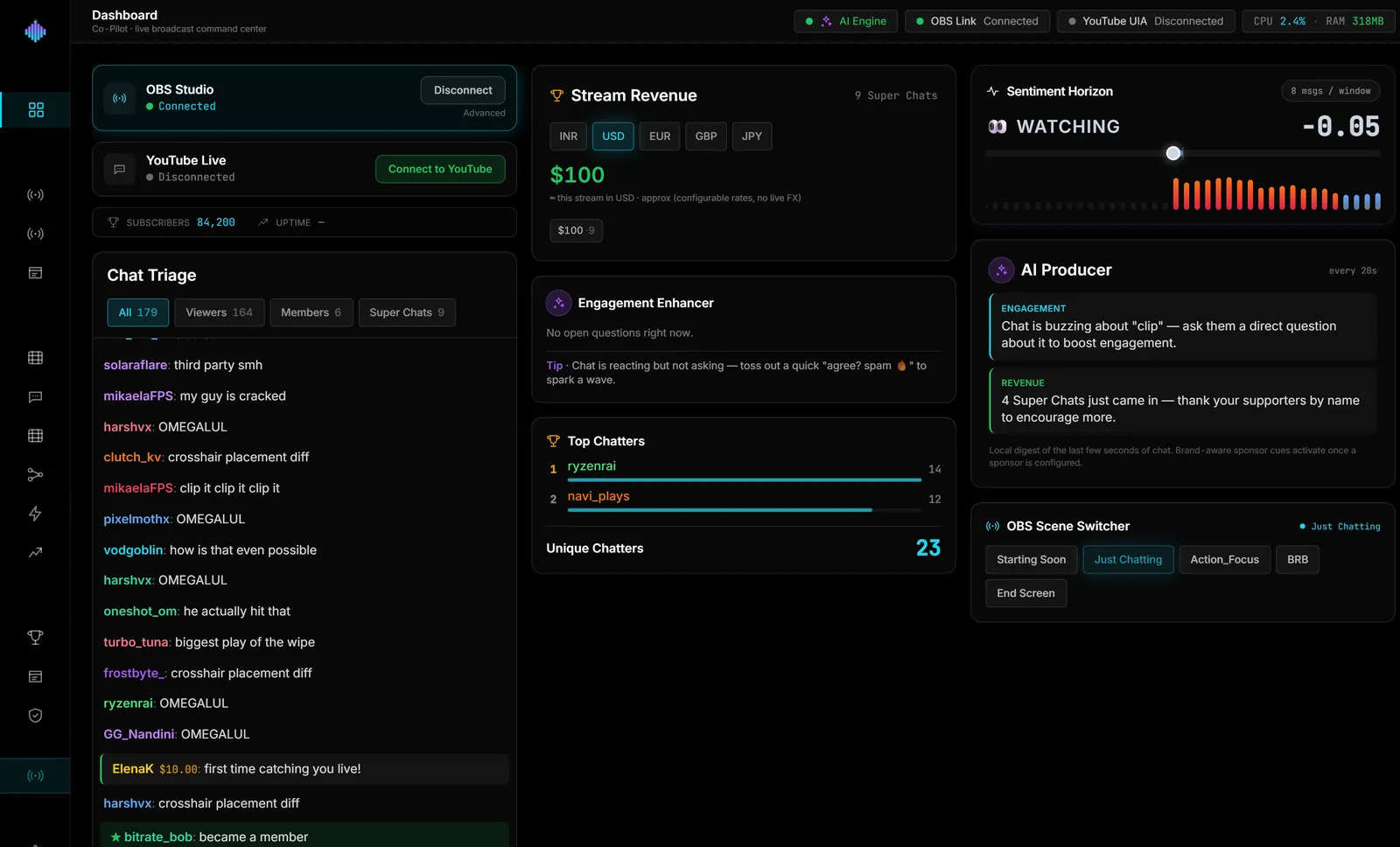
Tools that watch those signals for you let you glance at chat at the right moments instead of constantly. streamerOS is one: it sorts Super Chats and members out of the stream of messages, shows how fast chat is moving and its mood, and can switch your OBS scene when chat spikes. It is a Windows app that runs alongside OBS (so on one monitor it is another window, not an in-game overlay) and launches in February 2027; you can try the live demo in your browser today. For the reasoning behind watching chat speed, see what chat velocity is.
Which option should you pick?
| Your situation | Best option |
|---|---|
| Most games, one monitor | Borderless + pinned popout chat |
| OBS is visible during the stream | OBS custom browser dock |
| Competitive game, no screen space to spare | Phone or tablet |
| You rarely look away from the game | Text-to-speech for important messages |
| Busy chat you can't keep up with | A tool that tells you when to look |
Frequently Asked Questions
How do I see Twitch chat in a full-screen game? You generally can't overlay a window on an exclusive full-screen game. Switch the game to borderless windowed, then pin a popout chat on top.
How do I hide chat from my stream on one monitor? Capture the game window in OBS instead of the whole display. Anything outside that window, including your chat, stays off stream.
Does borderless windowed lower FPS? On current Windows versions the difference is usually small. Test your own game with OBS's stats open if you are close to your frame-rate limit.