Feature Guide
An OBS automatic scene switcher that watches your chat
OBS can already switch scenes when a window gains focus, and the free Advanced Scene Switcher plugin covers processes, audio and timers. streamerOS adds the trigger neither has: how fast your chat is moving. It switches scenes over OBS WebSocket v5, with no plugin.
Which OBS scene switcher do you actually need?
Window focus only: use the Automatic Scene Switcher already in OBS, under Tools. Free, installed, enough for “browser in front → hide the game capture”.
Process, audio, timer, idle, Twitch events: install the free Advanced Scene Switcher plugin. It is the right tool for machine-side rules and it costs nothing.
Chat getting busy, or a Super Chat landing: that needs something that measures chat and talks to OBS. That is what streamerOS does, and the rest of this page is about that one job. Rules for all three are in how to auto-switch OBS scenes.
Three steps, no scripting.
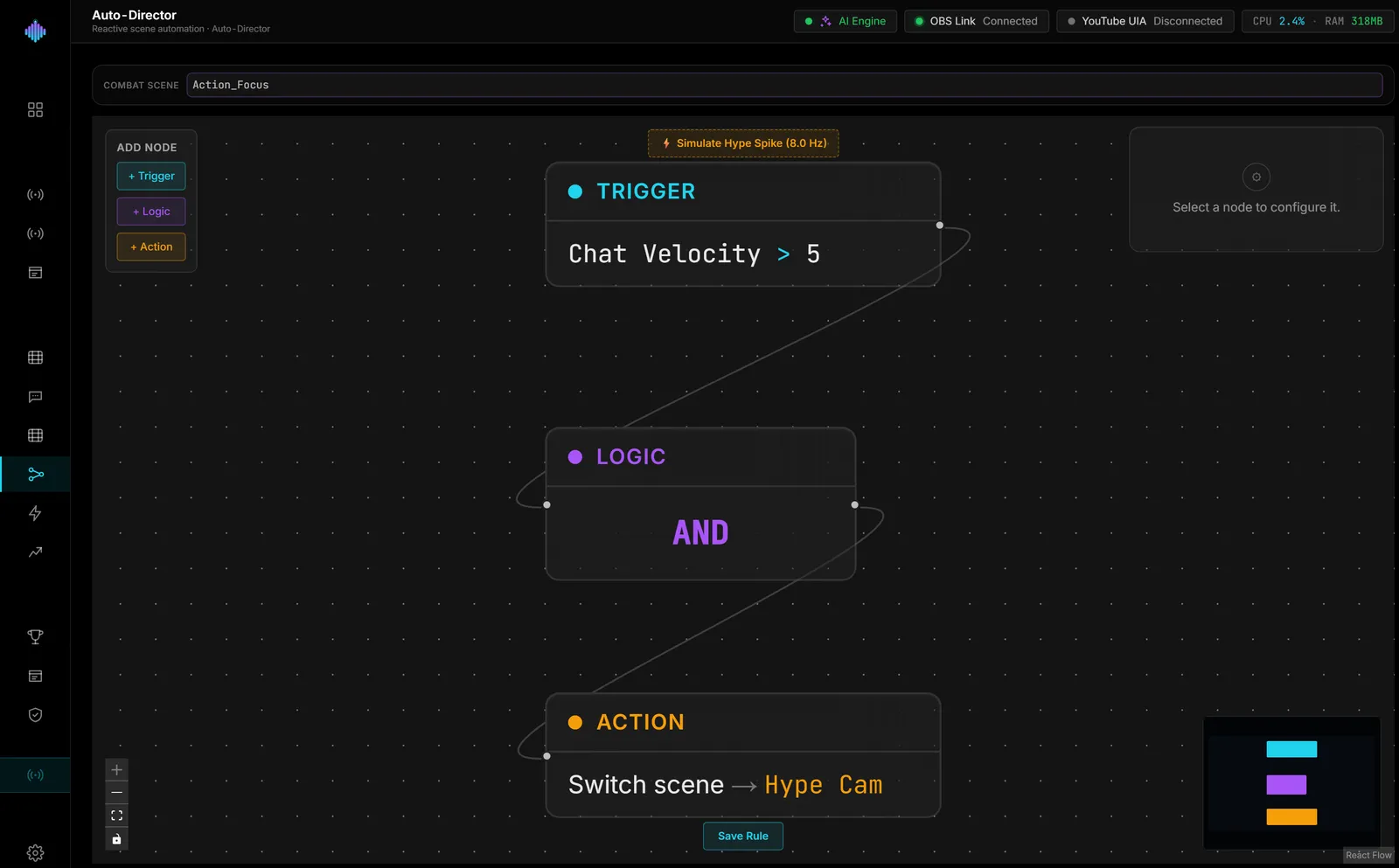
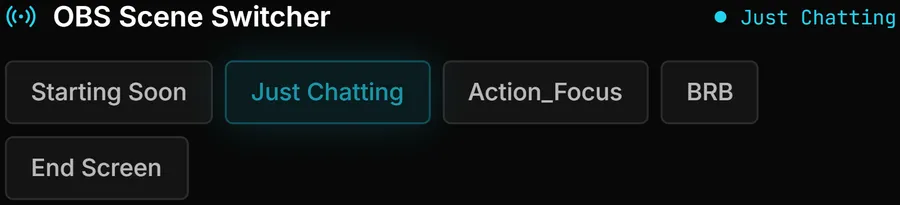
The manual side is the OBS Bridge: your scenes as a deck, with the live scene highlighted even when you change it inside OBS. The automatic side is the Auto-Hype Director, a node editor of triggers, logic and actions.
Step 1
Connect OBS once
Turn on the WebSocket server in OBS (Tools → WebSocket Server Settings). streamerOS finds OBS on the same PC and syncs your scenes into a deck. If you set a password, paste it into the OBS Bridge form.
Step 2
Pick what should trigger the switch
In the Auto-Hype Director, add a chat-velocity trigger (messages per second above a number you choose) or a Super Chat trigger (amount above a number you choose). Combine two with AND or OR if you want both.
Step 3
Pick the scene, and the way back
Wire the trigger to a Switch Scene action. A rule fires once when its condition becomes true, so OBS is not hammered while chat stays hot. Add the inverse rule, or keep a hotkey, so the stream always has a route home.
streamerOS vs the OBS Advanced Scene Switcher plugin
Most people searching for an OBS scene switcher will find the plugin first, and for machine-side rules it is the better choice. This table is where each one is strong, including the rows where streamerOS loses.
| streamerOS | Advanced Scene Switcher | |
|---|---|---|
| Price | $29 once after a free trial | Free and open source |
| Where it runs | A separate app, over OBS WebSocket v5 | Inside OBS, as a plugin |
| Process and window triggers | Not a trigger type | Process, Window, Idle and more |
| Audio, media, timer and hotkey triggers | Not trigger types | All available as macro conditions |
| Switch on how fast chat is moving | Chat velocity against your threshold | Reacts to single messages and events |
| Switch on a Super Chat amount | Threshold you set, YouTube Live | Twitch condition covers Twitch events |
| Survives an OBS update | No plugin to rebuild | Needs the build for your OBS version |
| Operating systems | Windows 10/11 only | Windows, macOS, Linux |
| Manual scene deck and live-scene sync | OBS Bridge deck and cockpit switcher | Hotkey conditions; OBS has its own scene list |
The two are not rivals for the same job. Advanced Scene Switcher reacts to events — a process starting, a key press, a single chat message, a new subscriber. It has no measure of how fast chat is moving compared with your normal pace, so “chat just exploded” is not a condition you can set without counting messages yourself. streamerOS measures exactly that, and only that, and runs beside the plugin rather than instead of it. The full plugin walkthrough, with macro recipes and fixes for when it does not switch, is in the Advanced Scene Switcher guide.
Plugin rows reflect its forum resource page as read on 23 October 2026 and may change with new releases. streamerOS rows describe v1.0, launching February 2027.
What this scene switcher does not do
Stated before the sign-up button, so nobody pays to find out.
- It does not switch on a game launching, a window gaining focus, audio levels or a timer. Use OBS’s own switcher or the free plugin for those.
- It does not post to chat, run commands or moderate. It reads chat only.
- It is Windows 10/11 only and needs OBS Studio 28 or later with the WebSocket server enabled.
- It is $29 once after a 7-day trial. If two machine-side rules are all you need, the free tools are the right answer and this page has told you so.
Frequently asked questions.
Does OBS have a built-in automatic scene switcher?
Yes. OBS Studio ships an Automatic Scene Switcher under the Tools menu that switches scenes when a named window has focus. For anything beyond window focus — a process starting, audio, timers, Twitch events — the free Advanced Scene Switcher plugin covers it. Neither measures how fast your chat is moving, which is what streamerOS adds.
What does the streamerOS scene switcher react to?
Chat velocity (messages per second compared with a threshold you set) and Super Chat amounts, combined with AND/OR logic in the Auto-Hype Director. When a rule becomes true it switches the OBS scene once, rather than firing on every tick while chat stays busy. It does not watch processes, windows or audio — the free tools do that well already.
Does it need an OBS plugin?
No. streamerOS connects to OBS Studio over OBS WebSocket v5, which is built into OBS 28 and later, on the same PC at 127.0.0.1. There is nothing to install inside OBS and nothing to reinstall after an OBS update.
Can I use it alongside Advanced Scene Switcher?
Yes, and that is the sensible setup: keep the plugin for machine-side rules such as “game launches → Gameplay”, and let streamerOS handle the chat-driven switch. Make sure only one tool owns each scene change, or they will undo each other.
Does it work with YouTube Live as well as Twitch?
Yes. Twitch chat is read over an anonymous, read-only connection; YouTube chat is read from the YouTube page open in your own browser, so there is no API key and no Google sign-in. streamerOS reads chat and never posts to it.
What does it cost, and what is the catch?
A free 7-day trial with every feature, then $29 once; pre-registering before the February 2027 launch extends the trial to three months. The honest limits: it is Windows 10/11 only, it needs OBS Studio 28 or later, and chat-driven switching only helps if your chat is active enough to have a baseline.
More questions answered on the full FAQ.
The actual app
The manual side and the automatic side.
The OBS Bridge deck, the cockpit scene switcher and the Auto-Hype Director, captured from the running app.



Related guides
Let chat call the scene.
Free for 7 days with every feature, then $29 once. Pre-register before the February 2027 launch and the trial runs three months.
Launching February 2027