Guides · OBS Studio · Automation
OBS Advanced Scene Switcher: Setup Guide and Macro Recipes
By Yaseen Khatib · October 23, 2026
Advanced Scene Switcher is a free OBS plugin that switches scenes — and does far more — on rules you build as macros: "when these conditions are true, run these actions." Install it, open it from OBS's Tools menu, add a macro with a condition (for example, your game's process is running) and an action (switch to your Gameplay scene). Below: installation, your first macro, five recipes worth copying, fixes for when it does not switch, and the one thing it does not do on its own.
If you only need "this window is focused → show this scene", OBS's built-in switcher is enough; the auto-switch guide compares both.
What Advanced Scene Switcher is
It is a long-running community plugin, free and open source (source on GitHub), distributed on its OBS forum resource page. At the time of writing the current version is 1.36.1, it needs OBS 31.1.1 or newer, and it runs on Windows, macOS and Linux (64-bit).
Its power is the range of things a macro can react to. Conditions include Process, Window, Audio, Media, Idle detection, Timer, Date and time, Hotkey, Scene, Streaming, Recording, Replay buffer, Variable, Websocket and Twitch. Actions include Switch scene, Scene item visibility, Audio, Replay buffer, Wait, Macro, Hotkey, Twitch and more.
How to install it
- Download the installer for your system from the plugin's forum page (installers are provided for Windows and macOS).
- Close OBS, run the installer, then reopen OBS.
- Open Tools → Advanced Scene Switcher.
If it does not appear under Tools, check your OBS version against the plugin's minimum and make sure you installed the build for your OBS, not an older one.
Your first macro: switch to Gameplay when the game starts
- In the Advanced Scene Switcher window, go to the Macro tab and add a new macro. Name it "Game starts".
- Add a condition: Process, and choose your game's executable
(for example
game.exe). - Add an action: Switch scene, and pick your Gameplay scene.
- Make sure the scene switcher is running (the plugin has a start/stop control on its General tab).
Launch the game and OBS should cut to Gameplay. That is the whole pattern: every macro is conditions, then actions.
Five macro recipes worth copying
1. Game closes → Be Right Back. Condition: Process — the game is not running. Action: Switch scene to BRB. Pair it with the first macro so every switch has a way back.
2. Starting soon → live on a timer. Condition: Timer (or Date and time for a fixed start). Action: Switch scene from your Starting Soon scene to your main scene. No more forgetting to leave the countdown screen.
3. You walked away → BRB. Condition: Idle detection (no keyboard or mouse input for a few minutes). Action: Switch scene to BRB, plus an Audio action to mute your mic.
4. A new subscriber → a short celebration. Condition: Twitch — a subscription event (the Twitch condition covers events such as follows, subscriptions, cheers and chat messages once you connect your account). Actions: Switch scene to Celebration, Wait ten seconds, then Switch scene back.
5. A manual override you will be glad you built. Condition: Hotkey. Action: Macro — pause your automatic macros. Bind it to a key you can hit without looking, so you can take control back instantly when automation does something you did not want.
Advanced Scene Switcher not switching? Check these
- The switcher is not running. Macros only fire while it is started.
- The macro is paused, often by your own override macro from recipe 5.
- Two macros are fighting. If one switches to Gameplay and another switches away on a broader condition, the scene flips back and forth. Narrow the conditions so only one of them can be true at a time.
- Process vs window. A Process condition needs the executable name; a Window condition needs the window title, which changes with launchers and browser tabs. Use Process for games.
- Two switchers at once. Running OBS's built-in Automatic Scene Switcher alongside this plugin means two systems switching scenes. Turn one off.
- Version mismatch after an OBS update. Install the plugin build that matches your OBS version.
The one trigger it does not cover: how busy your chat is
Advanced Scene Switcher reacts to events — a process starting, a key press, a single chat message, a new subscriber. What it does not have is a measure of how fast chat is moving compared with your normal pace. A chat-message condition fires on individual messages, so on a busy stream it either fires constantly or not at all; turning "chat just exploded" into a reliable trigger means counting messages yourself with variables or scripts.
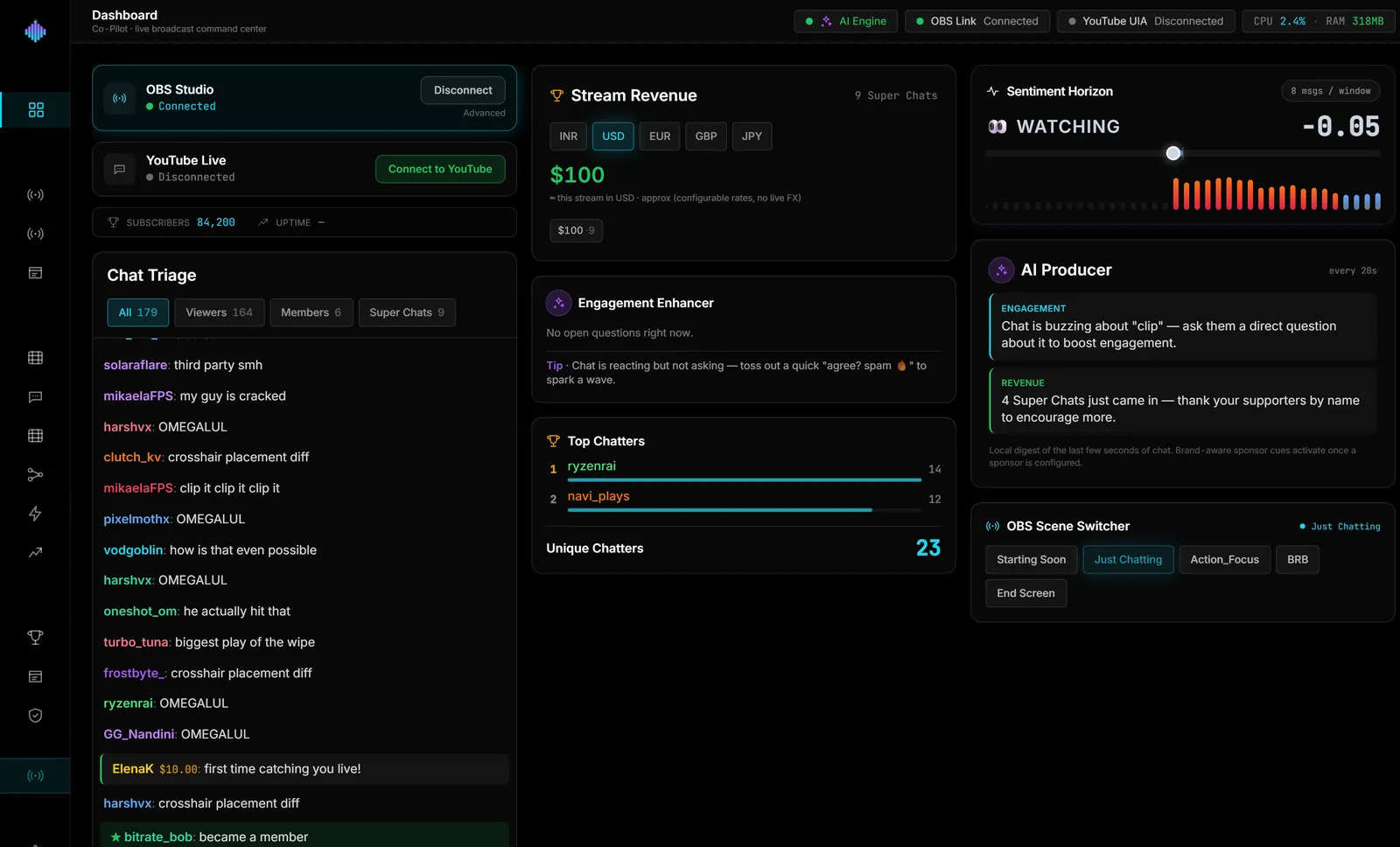
That is the gap streamerOS fills. Its Auto-Hype Director measures chat velocity against your own stream's baseline and switches your OBS scene when chat spikes or a Super Chat crosses an amount you set, for Twitch and YouTube (YouTube without an API key). It runs on your PC next to OBS and works alongside Advanced Scene Switcher — keep the plugin for your machine-side rules; the row-by-row comparison is on the OBS scene switcher page. It is Windows-only, $29 once after a free trial, and it reads chat but never posts to it; it launches in February 2027. You can try the live demo in your browser now, and founding members — everyone who pre-registers before launch — get the beta first.
Frequently Asked Questions
Is Advanced Scene Switcher free? Yes. It is a free, open-source plugin distributed through the OBS forum and GitHub.
Where is Advanced Scene Switcher in OBS? After installing, open it from the Tools menu. If it is missing, the plugin build probably does not match your OBS version.
Can Advanced Scene Switcher switch scenes based on Twitch chat? It can react to individual chat messages and Twitch events such as follows and subscriptions. It does not measure how fast chat is moving, so "switch when chat gets busy" needs extra work or a separate tool.