Guides · OBS Studio · Automation
OBS WebSocket Connection Failed: Three Failures, Three Fixes
By Yaseen Khatib · November 4, 2026
Short answer: An OBS WebSocket connection fails in one of three ways. Nothing answers on the port, so the server is off, the port is wrong or a firewall is in the way. Something answers but closes the connection right after you identify, which means the password is wrong. Or it connects but shows wrong scenes: a version or profile mismatch.
The error I leaked into the header
On 2 June 2026 I typed a wrong password into the OBS connection panel in streamerOS and read what came back. Not the friendly message. The raw, internal error object, printed straight into the status header at the top of the app, braces and field names included. Good enough for me, a terrible thing to show anyone else.
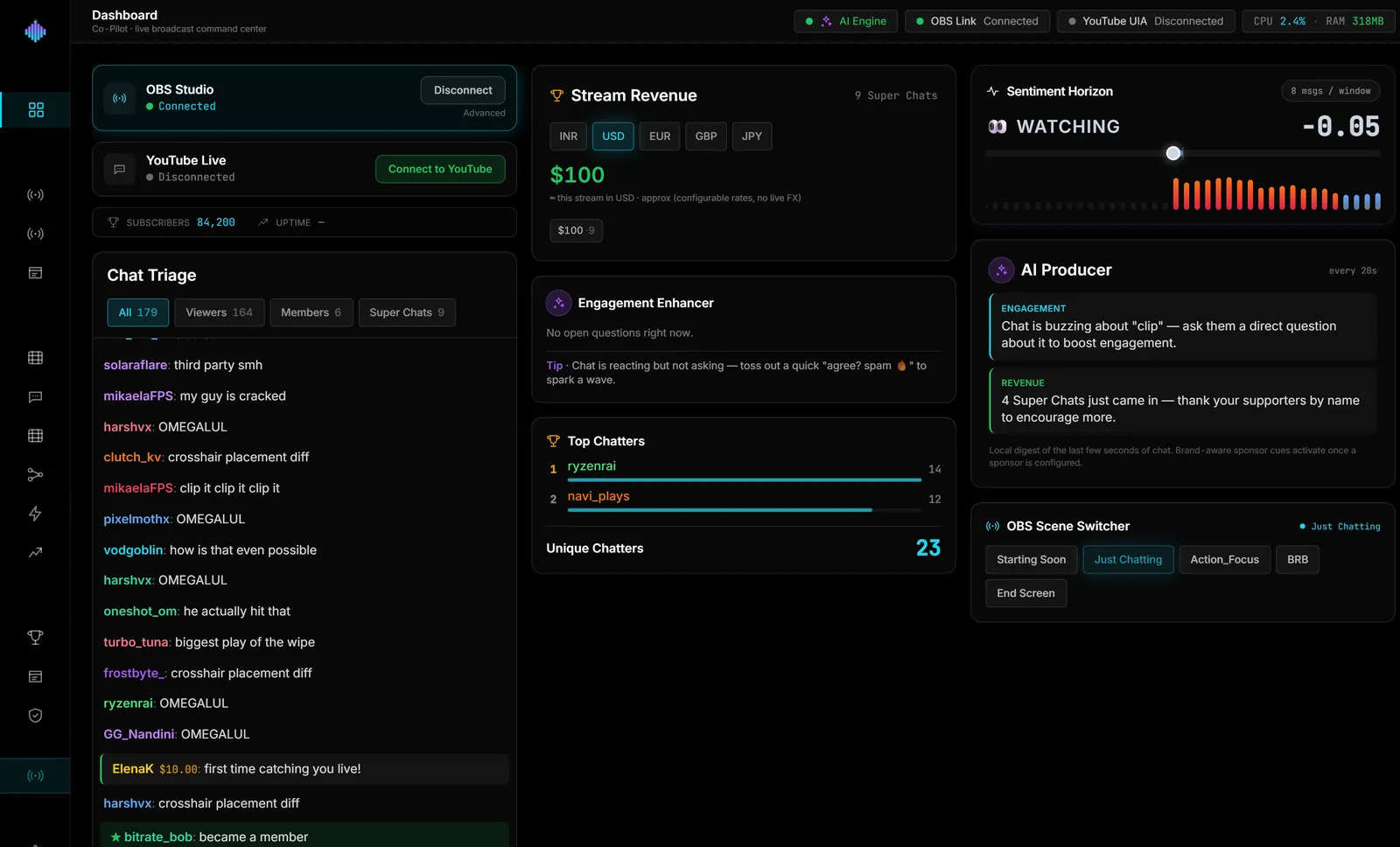
The streamerOS cockpit talks to OBS over WebSocket, so a failed connection is the first thing a new user can hit. That day I cleaned up two commits: one that made the connection errors readable, and one that stopped the header leaking raw error text. Then I did the testing I should have done first. I tried every way I could think of to make the connection fail, wrote down what each looked like, and kept the notes in my test log. This post is those notes, translated for someone who just wants OBS to connect.
If you have not set the server up yet, start with our OBS WebSocket setup guide. This post is for when it is set up and not working.
Failure one: auth is on and the password is wrong
On the test PC OBS was open with authentication enabled. I connected with a wrong password and then a blank one. OBS's remote protocol does not send back a polite "wrong password". Per my notes, it closes the socket during the identify step. The close code is 4009 in the protocol, and my code comment records that a close while waiting for the identify reply is therefore an authentication failure, not a random drop.
From the outside, that looks like a connection that opened and then died immediately. That is the signature to remember: connects, then closes at once means password. The message I show now says, in plain words, to check the password and make sure WebSocket is enabled.
The fix: in OBS, open the settings dialog under Tools. OBS's own remote control guide words the menu as "obs-websocket Settings" and tells you to enable authentication and set your own password; our setup guide uses the label "WebSocket Server Settings". Either way, it is the WebSocket server dialog in the Tools menu. Use Show Connect Info, copy the password and paste it. Retyping it by hand is how you get a trailing space.
With the correct password, the same test went through: handshake accepted, one scene found.
Failure two: nothing answers on the port
For this test I turned the WebSocket server off in OBS and did a full restart of the tool. The result was the quietest failure of the three. No error from OBS, because OBS was not listening. From the tool's side, the connection attempt simply fails.
Because this is what you see on a PC where OBS is closed, I made streamerOS stay silent about it at start-up: no error banner, no console noise, just a clean "no OBS connection" state and a manual connect button. That is a product decision. For you, the lesson is the opposite: silence from a tool is not proof that everything is fine. No answer at all means the server is not reachable.
Check these, in order:
- Is OBS running? Obvious, and the answer is no more often than anyone admits.
- Is the server enabled? The tick box in the same Tools dialog.
- Is the port right? The v5 default in the version I test against is 4455. The old standalone plugin used 4444.
- Is Windows blocking it? The first time OBS opens a port, a firewall dialog appears. If it was dismissed, check Windows Defender Firewall's allowed apps list.
- Is the host right?
localhostfor a tool on the same PC; the streaming PC's LAN address for another machine.
Failure three: connected, but it is the wrong OBS
This is the third failure, and it is the one with no error to read. In the third test the server was on and authentication was off, so my app connected silently at start-up, found five scenes and read which one was live. The deck filled in, no password banner. That is the success case, and it shows what success looks like: a connection that works lists your scenes and knows which is live.
The failure sibling of this is a connection that works but shows an empty list or the wrong scenes. The usual causes are a different OBS profile or scene collection than the one on screen, or a tool that speaks the older version 4 protocol to a version 5 server. Streamer.bot, for one, states on its public site that it supports both OBS WebSocket 4 and 5 (as of November 2026), which is the kind of line to look for before blaming your settings.
The day I blamed my code for a stale binary
One more story, because it saved me time later. On 10 June I chased a reported bug where the scene badge was lost on tab changes. The code was right. I was running a program built before my fix, because the front-end hot-reloaded and the Rust half did not rebuild. The cure was a full restart. Moral: before you debug a connection, restart the tool, restart OBS, and make sure what is running is what you think is running.
What I would do again
- Tell the three failures apart before changing anything: silence, connect-then-close, or connected-but-empty.
- Copy the password with Show Connect Info, never retype it.
- Confirm the server is enabled and the port number in the OBS dialog, not from memory of an old tutorial.
- Make the tool print the reason in words. If yours shows raw error text or nothing, say so to its author.
- Test the disabled-server case on purpose. It is the one most people only meet at 8 p.m. on stream day.
- Restart both ends before a long debugging session.
streamerOS uses this connection for scene automation, locally and with no account. It launches in February 2027, and the box below is the pre-registration list.
Frequently asked questions
Why does my OBS WebSocket connection fail immediately after connecting? That usually means a wrong or missing password. OBS closes the connection during the identify step when authentication is rejected.
What is the default OBS WebSocket port? 4455 for the built-in server in current OBS. The older standalone plugin used 4444.
Where is the OBS WebSocket password? In the Tools menu, in the WebSocket settings dialog. Use Show Connect Info to copy it.
Should I open the port to the internet? No. It is designed for a trusted local network. Our setup guide explains why.