Feature Guide
An overlay that feels the room.
Aura reads your game and your chat every second and shifts the vibe for you. It computes a live state — Calm, Hype, Combat or Tense — from the game in the foreground and your chat velocity, then drives your OBS overlay from your own PC. No manual switching, no cloud.
A Canvas of Light in three steps.
Pick an aura → calibrate your threshold → let it shift the vibe live. Everything runs on your machine.
Step 1 · The Gallery
Pick an Aura from the gallery.
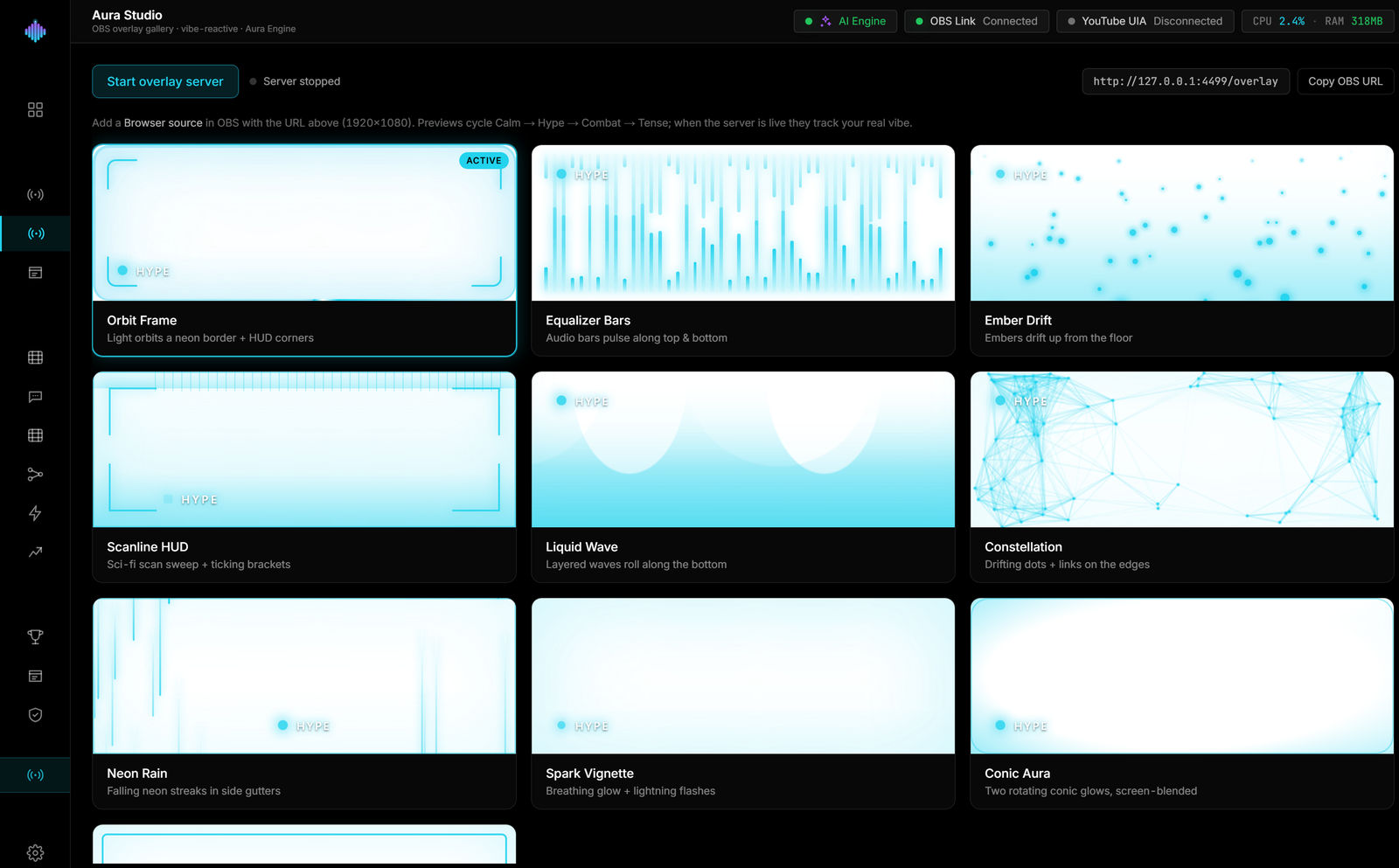
Open Aura Studio and browse the built-in gallery of overlay looks. Each aura is a full Canvas of Light — Calm, Neon, Hype and more — that reacts to your vibe state. Click one to make it the active overlay for your stream.
Overlay gallery
Calm
soft, slow drift
Neon
crisp, reactive
Hype
bright, high energy
Aurora
ambient sweep
Step 2 · The Calibration
Calibrate your hype threshold.
Every stream peaks differently, so you set where 'Hype' kicks in. Drag the threshold along the Calm → Hype scale until it matches your room, and Aura remembers it — the calibration persists between sessions.
Set the threshold
Hype fires past 72%
Step 3 · The Vibe Engine
It shifts your vibe live, once a second.
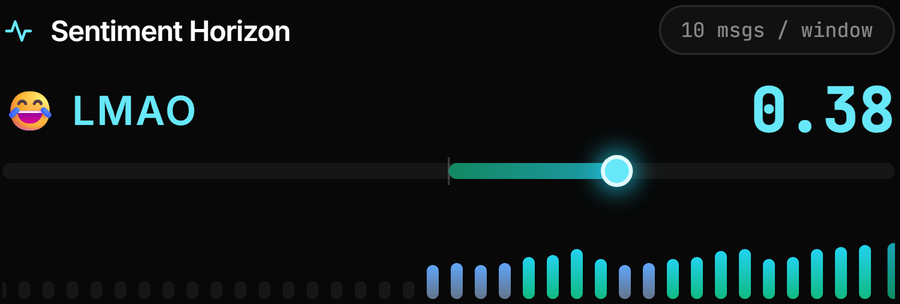
Aura reads your game telemetry and chat velocity at 1 Hz, computes the current vibe state, and drives your active OBS overlay over the local HTTP bridge on port 4500. You never touch a switch — the atmosphere just follows the moment.
Vibe engine · live
HYPE
Frequently asked questions.
What is Aura Studio?
Aura Studio is a reactive overlay layer — a "Canvas of Light" — that reads your game telemetry and chat velocity every second and shifts your overlay’s vibe from Calm to Hype on its own. Your stream visually reacts to the room without you touching anything mid-broadcast.
How does the overlay get into OBS Studio?
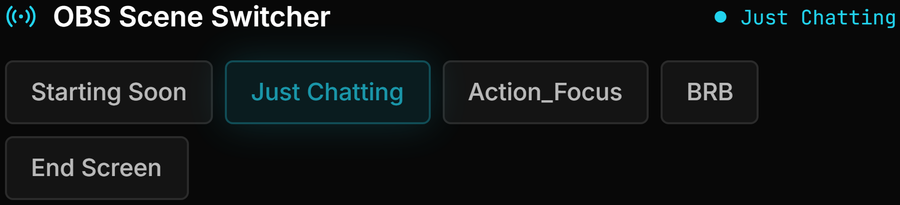
streamerOS serves the overlays from your own PC. Add a Browser Source in OBS pointing at the local address the app gives you, and picking a different design in the gallery changes what that source shows — no OBS reconfiguration. Want a design of your own? Build it in the Aura Scene Builder. There is no cloud overlay service in the loop.
Can I control when the overlay flips from Calm to Hype?
Yes. Aura Studio has a hype-threshold calibration, so you decide how much chat energy it takes before the overlay escalates. A cozy chatting stream and a tournament grand final can run very different thresholds.
Does a live reactive overlay cost me frames?
No. streamerOS runs on a Rust core that holds a 1.8% CPU footprint under a live 1080p60 game — the overlay reacts in real time while your frames stay with the game and OBS.
More questions answered on the full FAQ.
The actual app
Overlays, and the state that drives them.
The gallery, the scene it feeds, and the live readings the vibe follows.



Light that runs on your machine.
Aura Studio ships with streamerOS v1.0 in February 2027, running entirely on your machine with no cloud in the loop.
Launching February 2027