Guides · OBS Studio · Twitch
Twitch Chat Overlay in OBS: Transparent Chat Without a Plugin
By Yaseen Khatib · October 30, 2026
To put a Twitch chat overlay in OBS, add a Browser Source and give it either your channel's popout chat URL or a chat widget URL from an overlay service. The popout URL takes thirty seconds and shows chat exactly as Twitch draws it, dark background included. A chat widget is the route to a transparent chat overlay with your own fonts and colours, because it is built to be composited over video. No OBS plugin is needed for either. The same Browser Source steps work for a YouTube or Kick chat overlay with that platform's chat URL.
What an OBS chat overlay is, and what it is not
An OBS chat overlay is a chat feed rendered into the video your viewers see. It is a scene source, so it goes out on stream and ends up in the VOD. That is different from a chat dock, which is a panel inside the OBS window that only you see. If you want to read chat while you play without showing it to anyone, you want a dock, not an overlay — see OBS chat dock missing? How to get it back.
Overlays are for viewers watching on a TV or a second screen, for VOD and clip context ("what was chat reacting to?"), and for streams where the chat is the content.
Option 1: the popout chat URL (fastest)
Twitch serves a standalone chat page for every channel:
https://www.twitch.tv/popout/YOURCHANNEL/chat?popout=
Add ?darkpopout instead of ?popout= for the dark theme.
- In OBS, select the scene, then in Sources click + → Browser.
- Paste the popout URL into URL.
- Set Width and Height in the source's properties — a narrow column such as 400 × 800 reads well. Set the size here rather than scaling the source in the preview; scaled browser sources look soft.
- Click OK, then drag it where you want it.
The first load may ask you to sign in; do it inside the Browser Source's Interact window (right-click the source → Interact).
The limitation: this is Twitch's own page, with Twitch's own background.
OBS's Browser Source applies a default Custom CSS of
body { background-color: rgba(0, 0, 0, 0); margin: 0px auto; overflow: hidden; },
which makes the page body transparent, but the popout draws its dark
background on elements inside the body, so the box stays dark. People publish
CSS snippets that target Twitch's internal class names to hide those backgrounds;
they work until Twitch changes its markup, which it does regularly. Treat any
such snippet as temporary.
Option 2: a chat widget (for a transparent chat overlay)
Overlay services render chat as a page designed to sit over video: transparent
background, message fade-out, custom fonts, badge and emote handling. OBS's own
stream layout tutorial names StreamElements, which combines alerts and a chat
box in one overlay, and notes that Streamlabs widgets also work in OBS through a
Browser Source. NightDev's KapChat is a long-running free option that takes your
channel name in the URL and has a fade parameter for message fade-out.
The steps are the same as Option 1: copy the Widget URL or Overlay URL from the service, add a Browser Source, paste it in, set the size. Because the page draws nothing behind the messages, the overlay is transparent by design, no CSS required.
The trade is a third-party page running in your encoder. Each Browser Source is a Chromium instance; one is fine, five is a measurable CPU cost on a modest PC. Tick Shutdown source when not visible so the overlay stops rendering in scenes that do not show it.
YouTube and Kick chat overlays
YouTube: open your live stream's chat and use its menu to pop it out; the
popout URL has the form
https://www.youtube.com/live_chat?v=VIDEO_ID&is_popout=1. Note the video ID
changes for every broadcast, so update the source each stream, or use a widget
service that follows your channel.
Kick: Kick's chat panel also has a popout option. Copy the address of the popout window and use it as the Browser Source URL. The widget services above cover Kick as well.
Fixes for the usual problems
- A solid black box instead of chat. Either the page has not loaded (check the URL) or you expected transparency from the popout page. See Option 1's limitation; a widget is the fix.
- Chat stops updating mid-stream. Open the source's properties and click Refresh cache of current page, or tick Refresh browser when scene becomes active so it reloads on every switch.
- A sign-in prompt on stream. Use Interact to sign in once; the Browser Source keeps its own cookies. Do it off-air.
- Emotes show as text. KEKW, POGGERS and the other extension emotes exist only for viewers with BetterTTV or FrankerFaceZ installed. A Browser Source has no extensions, so it shows the words. Widget services often render these emotes themselves; check their settings. The glossary explains KEKW, POGGERS and Sadge.
- Chat is behind another source. Sources render in list order; drag the Browser Source above the game capture.
Where streamerOS fits, and where it does not
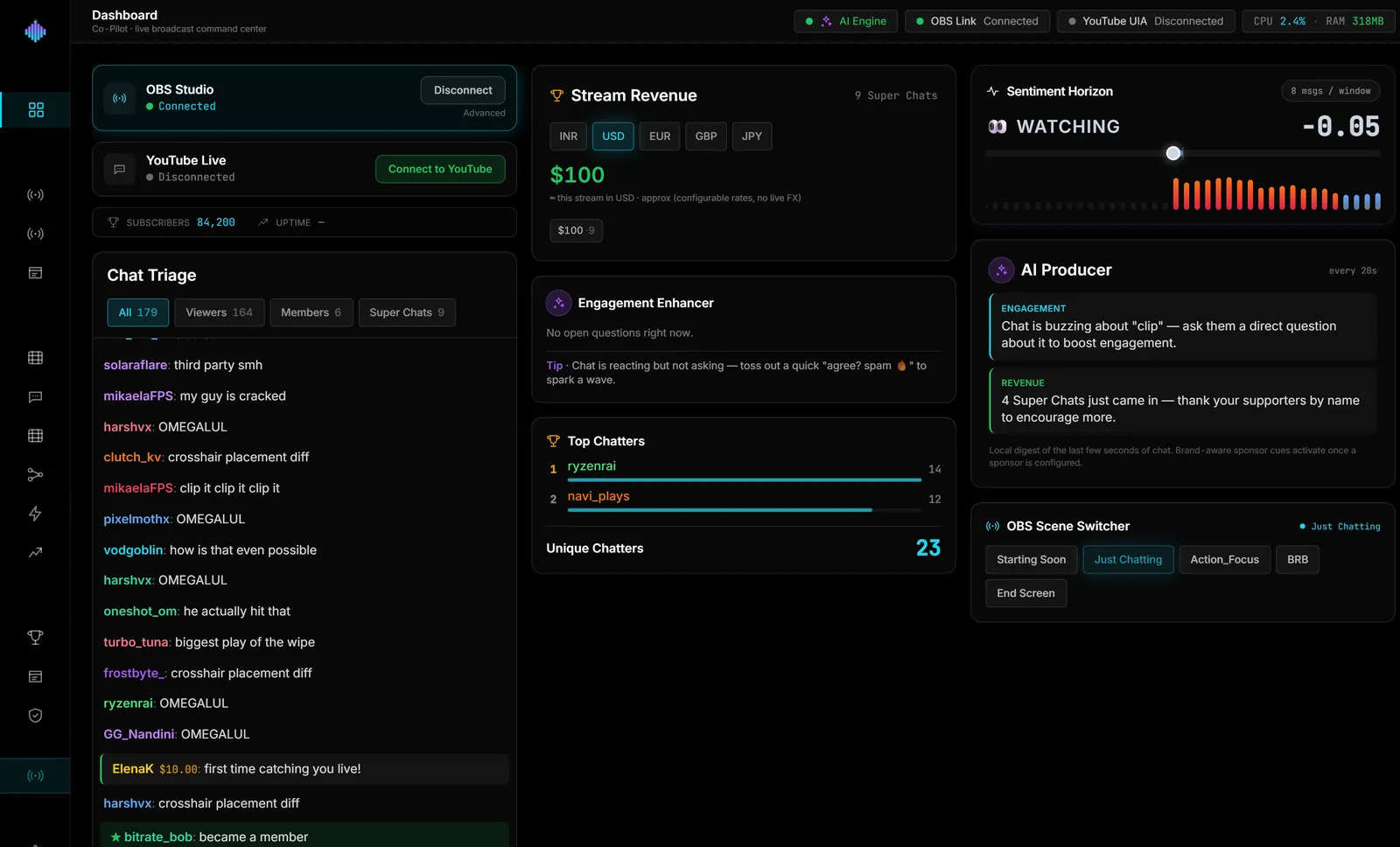
streamerOS does not render a chat overlay, and this guide would be dishonest if it pretended otherwise. What it does with chat is read it: Twitch chat over an anonymous, read-only connection and YouTube chat from the page open in your own browser, into a Live Cockpit beside OBS that sorts viewers, members and Super Chats as they land, scores the mood of the room, and saves every line to a local archive. It then uses what it reads to act: an automatic scene switch when chat spikes, and Aura Studio overlays that shift from Calm to Hype with chat's energy — those are Browser Sources, served from your own PC.
So the overlay above shows your viewers the chat; streamerOS is the thing that watches it for you. It is a Windows app, $29 once after a free trial, launching February 2027.
Frequently Asked Questions
How do I add Twitch chat to OBS without a plugin?
Add a Browser Source with your popout chat URL,
https://www.twitch.tv/popout/YOURCHANNEL/chat?popout=. No plugin is involved;
the Browser Source is built into OBS.
How do I make the Twitch chat overlay transparent? Use a chat widget from an overlay service, which draws no background. The popout page keeps its own dark background, and CSS hacks against it break when Twitch updates the page.
Does a chat overlay use a lot of CPU? Each Browser Source runs a browser process. One chat overlay is a small cost; several browser sources add up on a weak PC. Tick "Shutdown source when not visible" and keep the source's size modest.
Can I show Twitch and YouTube chat in one overlay? Not with the platforms' own popout pages — each shows one platform. Some widget services offer a merged chat box for multistreaming; check the service's features.