Guides · OBS Studio · Twitch
OBS Chat Dock Missing? How to Get Twitch or YouTube Chat Back
By Yaseen Khatib · October 30, 2026
If the OBS chat dock is missing, open the Docks menu and tick it; if it is not listed there, go to Settings → Stream and connect your Twitch or YouTube account, because the built-in chat dock only exists for a connected account. If you stream with a stream key, through a restreaming service, or on a build of OBS without the browser panel, the dock is not available at all — add the popout chat URL as a Custom Browser Dock instead. Each cause and its fix is below.
Where the chat dock comes from
OBS Studio has no generic "chat" panel. The Twitch and YouTube chat docks are part of OBS's service integration: when you choose Twitch or YouTube as the service under Settings → Stream and click Connect Account rather than pasting a stream key, OBS signs you in and adds docks for that service. For Twitch, forum threads on the OBS site list them as Chat, Stream Information and Twitch Activity Feed. YouTube gets its own chat and stream-information docks.
Those docks live under the top-level Docks menu (in OBS 28 and later; older versions had them under View → Docks). Every cause of a missing chat dock is a break somewhere in that chain.
Six reasons the chat dock is missing, in order
1. It is unticked
Open Docks and look for the chat entry. If it is listed but unticked, tick it. This is the whole fix more often than anyone admits.
2. It is dragged off-screen or collapsed
Docks can be floated and lost behind another window or on a monitor you unplugged. Docks → Reset Docks puts every dock back to its default position (View → Reset UI resets the whole window layout). If Docks → Lock Docks is ticked, untick it first, then reset.
3. You are using a stream key, not a connected account
Under Settings → Stream, if the Twitch or YouTube service shows a Stream Key field, you are not connected. Click Connect Account (recommended) and sign in; the Use Stream Key button is the other mode. The docks appear once the login completes.
4. The login has expired
The commonest cause on the OBS forums: the account was connected, the docks were there, and one day they are gone. Twitch has invalidated the login token. The fix reported in those threads is to go to Settings → Stream, click Disconnect Account, then Connect Account and sign in again. The docks return to the Docks list after the fresh login. One user found that switching the service to another provider, connecting, and switching back also forced the docks to reload.
5. You stream through a restreaming service
If the service in Settings → Stream is a multistream provider that forwards to Twitch rather than Twitch itself, there is no Twitch account connected to OBS and no Twitch docks. That is by design. Use the Custom Browser Dock fallback below.
6. Your OBS build has no browser panel
The docks are web views, so they need OBS's browser component. Some Linux packages (Flatpak builds and distribution packages in particular, per the OBS forum threads about Arch, Ubuntu PPA and Fedora) ship without it, and on those builds the Connect Account button itself is missing. Install the official build for your platform, or use the fallback.
The fallback that always works: a Custom Browser Dock
OBS lets you dock any web page. Use the chat popout page:
- Open Docks → Custom Browser Docks.
- Give the dock a name ("Twitch chat") and paste the URL:
- Twitch:
https://www.twitch.tv/popout/YOURCHANNEL/chat?popout=(?darkpopoutfor the dark theme) - YouTube: pop out the chat from your live stream and copy that window's URL. It contains the video ID, so it changes every broadcast.
- Twitch:
- Click Apply. The dock appears under Docks; drag it where you want it.
You may be asked to sign in inside the dock the first time. The Custom Browser Dock does not depend on the account connection, so it survives the expired-token problem above. It also lets you dock a chat for a service OBS does not integrate with.
Dock or overlay?
A dock is for you; an overlay is for your viewers. If what you actually want is chat visible on stream, that is a Browser Source in a scene, not a dock — covered in the Twitch chat overlay guide. And if you are on a single monitor and the dock is hidden behind a full-screen game, the problem is the game's display mode, not OBS: see how to read chat on one monitor.
Reading chat beside OBS instead
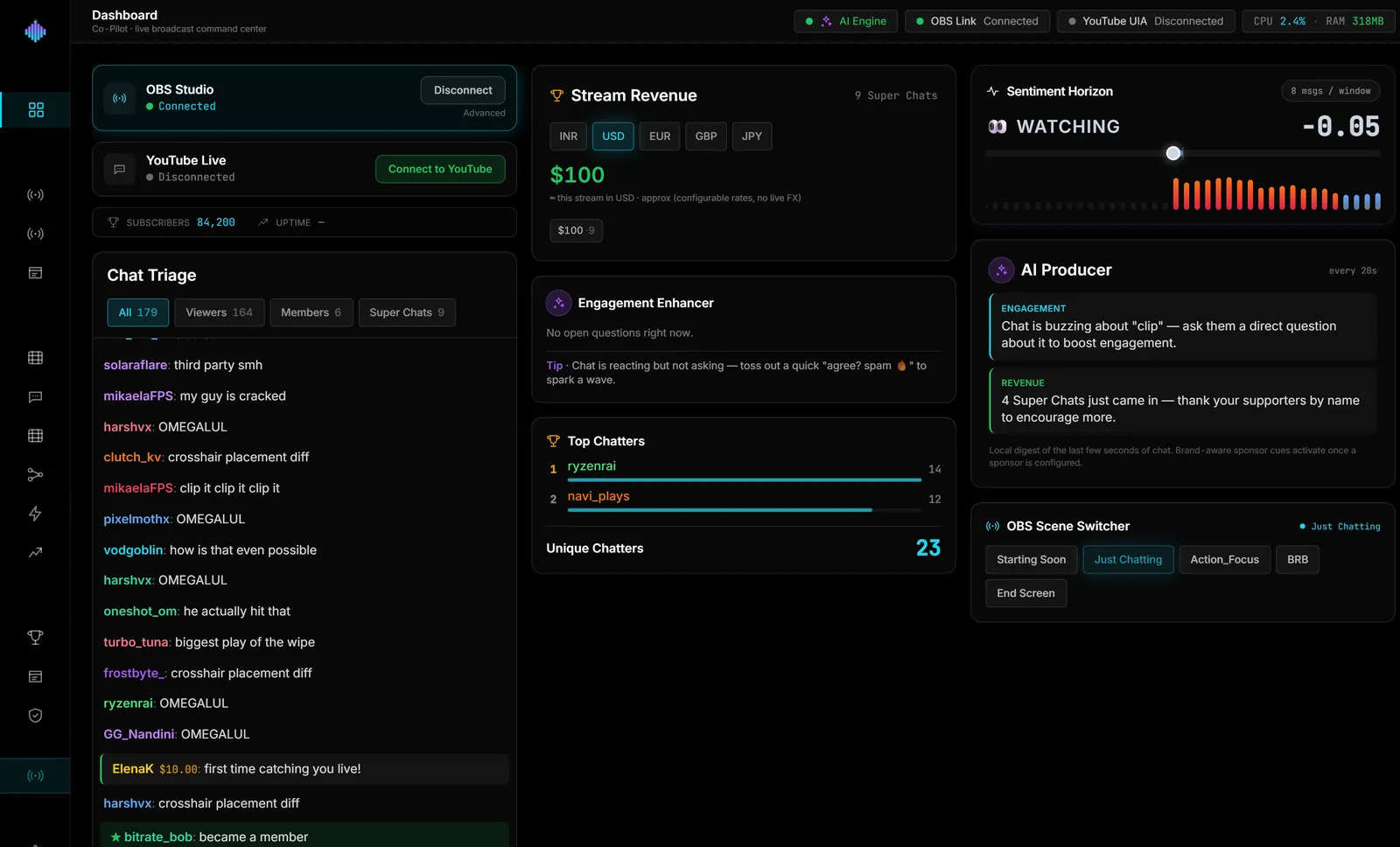
A chat dock shows you messages. It does not tell you who is a member, which message is a Super Chat, whether the room is turning, or how fast chat is moving against normal. streamerOS's Live Cockpit is a separate Windows app that reads Twitch chat (anonymously, read-only) and YouTube chat (from the page in your own browser, no API key) and sorts it as it lands, with every line saved to a local archive. It runs beside OBS, not inside it, so it does not depend on the dock at all. It is $29 once after a free trial and launches February 2027.
Frequently Asked Questions
Where is the chat dock in OBS? Under the Docks menu in OBS 28 and later (View → Docks in older versions). It is only listed when a Twitch or YouTube account is connected under Settings → Stream.
Why is there no Connect Account button in OBS? Your build of OBS lacks the browser component the service integration needs. This is common on Linux distribution packages and Flatpak. Use the official build, or add chat as a Custom Browser Dock.
Why did the Twitch chat dock disappear after an update? Usually the account login expired. Disconnect and reconnect the account under Settings → Stream; the docks come back after the fresh sign-in.
Can I dock YouTube chat in OBS? Yes, by connecting a YouTube account under Settings → Stream, or by adding the popout chat URL as a Custom Browser Dock. The popout URL changes per broadcast.