Guides · OBS Studio · Automation · YouTube
AI co host for streaming: the setup that works
By Yaseen Khatib · October 26, 2026
An AI co host for streaming is a voice or on‑screen assistant that watches chat and answers in short lines while you keep playing. You can build one today for free with OBS Studio, Windows’ built‑in text‑to‑speech voice, and a small local AI model (via Ollama). The reliable recipe is: keep replies short (1–2 sentences), gate what it’s allowed to read from chat, and give it its own audio source in OBS so you can mute or duck it instantly.
AI co host for streaming
What it actually does:
- Fills dead air with quick context‑aware lines.
- Answers common viewer questions so you don’t repeat yourself.
- Reacts to hype moments on cue (scene stingers, sounds, or an overlay).
- Never posts to chat; it talks on stream only.
The principle: you stay in control. The co‑host only speaks when you press a hotkey or send it a selected chat snippet. That keeps it safe and keeps your personality in front.
The free stack that works (and why)
- OBS Studio (free): your mixer, scenes, and hotkeys. Separate the co‑host into its own audio source so you can mute/duck it independently. If you need a refresher on low‑CPU presets, see Best OBS Settings for Low‑CPU Streaming (/blog/best-obs-settings-for-low-cpu-streaming).
- Windows TTS (free, built‑in): the “Microsoft” SAPI voices are included on Windows and sound clear at higher rates. Any TTS app that can speak clipboard text will do.
- Ollama (free, local AI): runs a small chat model on your PC, so prompts and chat never leave your machine. If you haven’t installed it before, use this Windows guide (/blog/run-ollama-on-windows-guide).
- Optional automation: use OBS hotkeys or a macro plugin to fire stingers, change scenes, or play a sound when you trigger the co‑host. For background on macro thinking, read Stream Automation 101 (/blog/stream-automation-101). For OBS WebSocket basics, see How to Set Up OBS WebSocket on Windows (/blog/obs-websocket-setup-guide).
Step‑by‑step: build your AI co‑host
- Prep OBS so it stays smooth
- Use your GPU encoder if you have one (e.g., NVENC on NVIDIA) to leave CPU headroom for the AI/TTS.
- Add a new audio input in OBS for the TTS app only (use an application/window capture audio source). Name it “Co‑Host.”
- Assign hotkeys: one to mute/unmute the Co‑Host, one to play a stinger or switch to a “Chat Q&A” scene.
- Give it a clean, controllable voice
- Use any Windows TTS voice. Set its speaking rate a bit faster than normal so replies stay punchy.
- In OBS, put a compressor/limiter on the Co‑Host source so it never blasts viewers. Optionally add a sidechain/ducking compressor on the Co‑Host keyed to your mic, so your voice always wins.
- Keep the Co‑Host on its own audio bus in your interface/mixer if you use one, so you can ride its level physically.
- Give it a brain (local, private)
- Install Ollama and pull a small general chat model (a lightweight model responds faster, which is what you want mid‑fight). Launch it before you go live.
- Create a simple “system prompt” that defines your co‑host. Keep it tight and specific. Example you can adapt:
- “You are my stream co‑host. Reply in 1–2 casual sentences. If you don’t see a direct question, say nothing useful and wait. Do not give commands to chat. Don’t make up facts about the game.”
- Practice with a few past chat lines to tune tone and brevity.
- Feed it the right chat at the right time
- Pop out your platform chat and keep it near your game. When you spot a clean viewer question (or a hype message you want to riff on), select just those 2–6 lines and copy them.
- Paste the snippet into your local AI prompt and press Enter. As soon as the reply appears, send that text to your TTS app (many can auto‑read the clipboard; otherwise paste and hit “Speak”).
- Fade in the Co‑Host audio or unmute it with your hotkey. Fade out after the line. Keep the entire exchange under 6–8 seconds.
- Make it safe and on‑brand
- You decide what gets through: only pass messages with a question mark, your name, or a whitelisted keyword (e.g., “settings,” “pc specs”).
- Cap reply length to 25–35 words in your prompt. Short answers reduce TTS lag and leave room for you to react.
- Keep a small bank of canned interjections you like (for hype spikes or transitions). Use those instead of AI when speed matters most.
Optional: scale it with light automation
- Scene flair: tie your Co‑Host hotkey to a quick stinger or camera punch‑in. It signals “co‑host is talking” without shouting over gameplay.
- Beat the chaos: when chat speeds up, switch to a layout with larger chat on screen and pre‑mute game audio 3–4 dB. You can do this with OBS hotkeys/macros tied to your “Co‑Host Speak” action.
- Super Chat cues: map a hotkey to “save replay buffer” or play a thank‑you sting right before you trigger the Co‑Host’s short thank‑you line. Keep money moments crisp and consistent.
Audio polish checklist
- TTS voice rate slightly fast, pitch natural.
- Compressor on Co‑Host to avoid spikes; hard limiter at the end of your chain.
- Avoid audio loops: capture only the TTS app, not full system audio, to prevent echo.
- If you hear clashes with game SFX, low‑cut the Co‑Host at ~120 Hz and carve a small midrange dip in game audio while the Co‑Host speaks.
Latency and CPU tips
- Keep replies short. Every extra sentence adds TTS time.
- Prefer smaller local models; they answer quicker and are good enough for chat banter.
- Leave CPU headroom: avoid running heavy video encodes during the stream; keep your encoder preset reasonable.
- If the voice starts late, pre‑roll with a 0.3 s stinger so the TTS can “catch up” under cover.
How streamerOS solves this problem
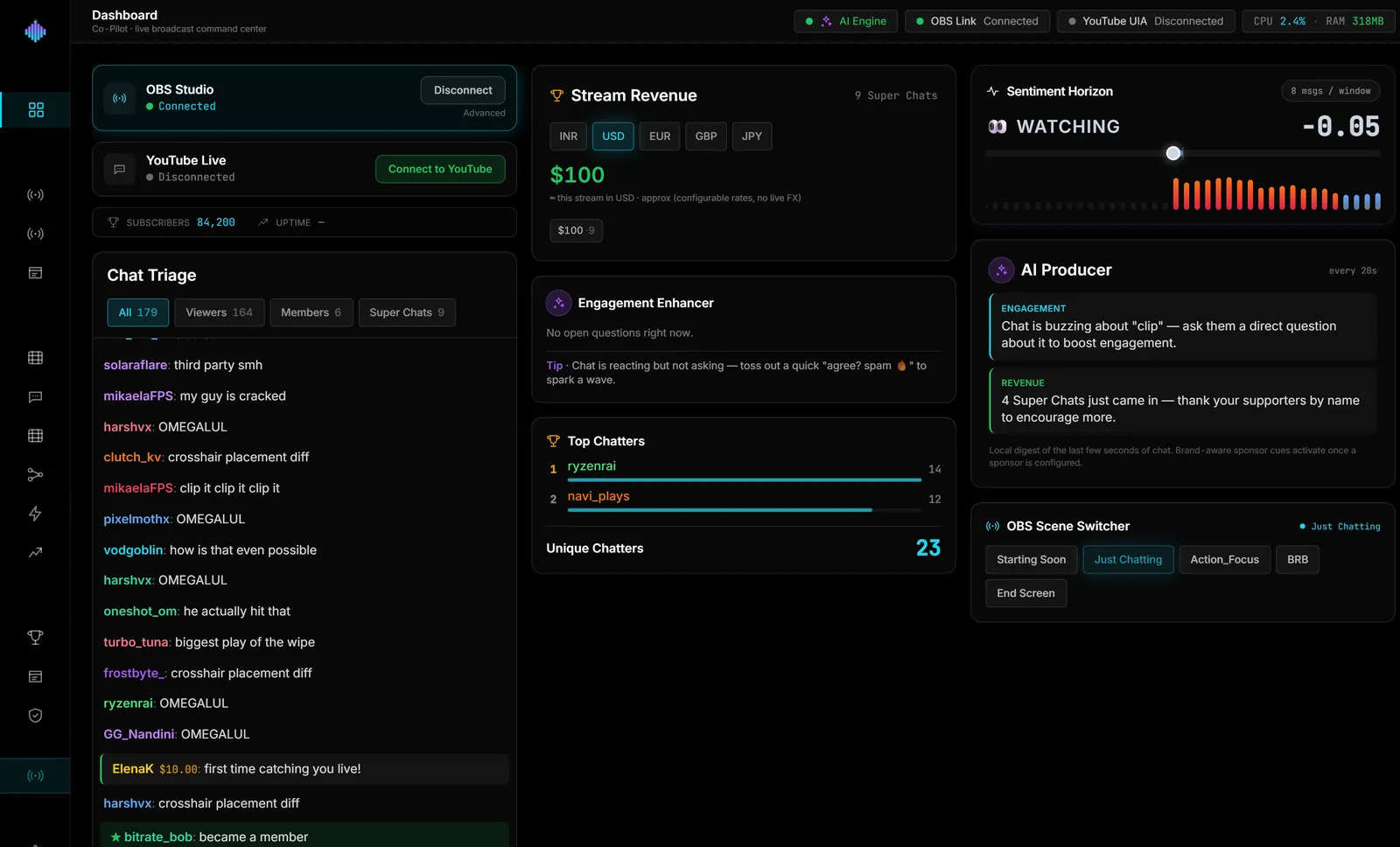
streamerOS is a Windows desktop cockpit that sits next to OBS, reads your Twitch/YouTube chat locally, measures what your audience is doing, and gives you an on‑screen AI Sidekick that answers in one or two sentences. It can switch OBS scenes through OBS WebSocket v5, and its Auto‑Hype Director lets you wire scene switches, sounds, overlay mood changes or a Discord post to two live triggers only: chat velocity and Super Chat amount. Sentiment Horizon shows the chat’s mood live, and everything runs on your PC with a local AI engine via Ollama — no cloud account, no telemetry.
Honest limits: Windows only; $29 once after the trial; it reads chat but never posts to it; launches February 2027. Want to see it in action? Try the live demo at https://demo.streamerosai.com (runs in your browser, nothing to install). Founding members — anyone who pre‑registers at pre-register before launch — get the beta first.
Frequently Asked Questions
Can an AI co‑host get me in trouble on Twitch or YouTube? There isn’t a blanket ban on using a virtual co‑host or TTS. Keep moderation in place, don’t let it post to chat, and follow each platform’s current rules and disclosure policies.
What voice should I use for the AI? Start with the built‑in Windows “Microsoft” voices and raise the rate slightly so replies are quick. Put the voice on its own OBS audio source with a compressor and a mute hotkey.
Will this run on a single PC while gaming? Yes if you keep the model small, replies short, and use your GPU encoder to free CPU. Give the co‑host its own audio source so you can kill it instantly if FPS dips.