Guides · OBS Studio · Optimization · Performance
NVENC vs x264 for Streaming: Which Encoder Should You Use?
By Yaseen Khatib · October 23, 2026
If you stream and play on the same PC and have an NVIDIA RTX card, use NVENC. It encodes on a dedicated chip on the graphics card, so your game keeps the CPU, and on RTX-era cards the picture at streaming bitrates is close to what x264 gives you on presets most gaming CPUs cannot sustain anyway. Choose x264 only if you have no hardware encoder, or a separate streaming PC with CPU to spare.
That is the short version. Here is why, and how to set up whichever one you pick.
NVENC vs x264: what is actually different
Both turn your OBS canvas into the video stream your viewers receive. The difference is where the work happens.
| x264 | NVENC | |
|---|---|---|
| Runs on | Your CPU | A dedicated encoder chip on an NVIDIA GPU |
| Cost to your game | Competes with the game for CPU cores | Very small; the chip is separate from the GPU's rendering cores |
| Quality per bitrate | Excellent on slow presets, weaker on fast ones | Close to x264's middle presets on RTX cards |
| Main setting | CPU Usage Preset (veryfast … slow) | Preset (P1 … P7) and Tuning |
| Best for | Dedicated streaming PCs, PCs without a hardware encoder | Single-PC streaming |
The key point is the first row. x264's quality advantage only exists on the
slower presets, and the slower the preset, the more CPU it takes. On a single PC
that CPU is exactly what your game needs. Most streamers who choose x264 end up on
veryfast to keep the game playable — and at veryfast, x264 no longer has a
quality edge over a modern NVENC chip. The trade-off is explained in detail in
OBS CPU Usage Preset: Which One Should You Use?.
When NVENC is the right choice
Pick NVENC if all of these are true:
- You stream and play on one PC.
- You have an NVIDIA GPU — ideally RTX 20-series or newer, where the encoder chip had a large quality jump.
- Your game is CPU-hungry: competitive shooters, open-world games, anything where frame rate drops when the CPU is busy.
Older GTX cards have NVENC too, but their encoder is noticeably weaker. It is still usually better than starving the game of CPU, so try it before you rule it out.
AMD and Intel have equivalents — AMD's AMF encoder and Intel's QuickSync. The reasoning is the same: a hardware encoder keeps the work off your CPU.
When x264 is still the better choice
x264 wins in three situations:
- No hardware encoder. Some CPUs without integrated graphics and older or very low-end GPUs have nothing else to offer.
- A dedicated streaming PC. If a second machine does nothing but encode, it
can run x264 on a slower preset like
medium, where it does beat hardware encoders at the same bitrate. - Your GPU is already maxed out and the CPU is mostly idle — rare in gaming, more common in GPU-heavy creative work.
Recommended settings for each
In OBS: Settings → Output → Output Mode: Advanced → Streaming.
NVENC (single PC, 1080p or 936p, 60 fps):
- Rate control: CBR, with the bitrate your platform recommends (for Twitch, see OBS bitrate settings for Twitch).
- Keyframe interval: 2 s.
- Preset: start at P5 and move toward P4 if you see encoding lag, or P6 if you have headroom.
- Tuning: High Quality.
- Look-ahead and Psycho Visual Tuning (called Adaptive Quantization in newer OBS versions): leave them on unless your GPU is the bottleneck. They are explained in Psycho Visual Tuning & Adaptive Quantization: On or Off?.
x264 (single PC):
- Rate control: CBR, keyframe interval 2 s.
- CPU Usage Preset:
veryfastto start; move towardfasteronly if the game keeps its frame rate. - Profile: high.
x264 (dedicated streaming PC): same as above, but try medium and step back
if OBS reports skipped frames.
How to tell which one your PC can carry
Do not guess — test for ten minutes:
- Open View → Stats in OBS.
- Start a private or unlisted stream and play your heaviest game for five minutes on NVENC. Note frames missed due to encoding lag and your in-game frame rate.
- Repeat with x264 on
veryfast. - Keep the encoder with fewer missed frames and a steadier game frame rate.
If either encoder shows climbing encoding lag, the fix order is in OBS 'Encoding Overloaded': What It Means and How to Fix It.
The part people forget
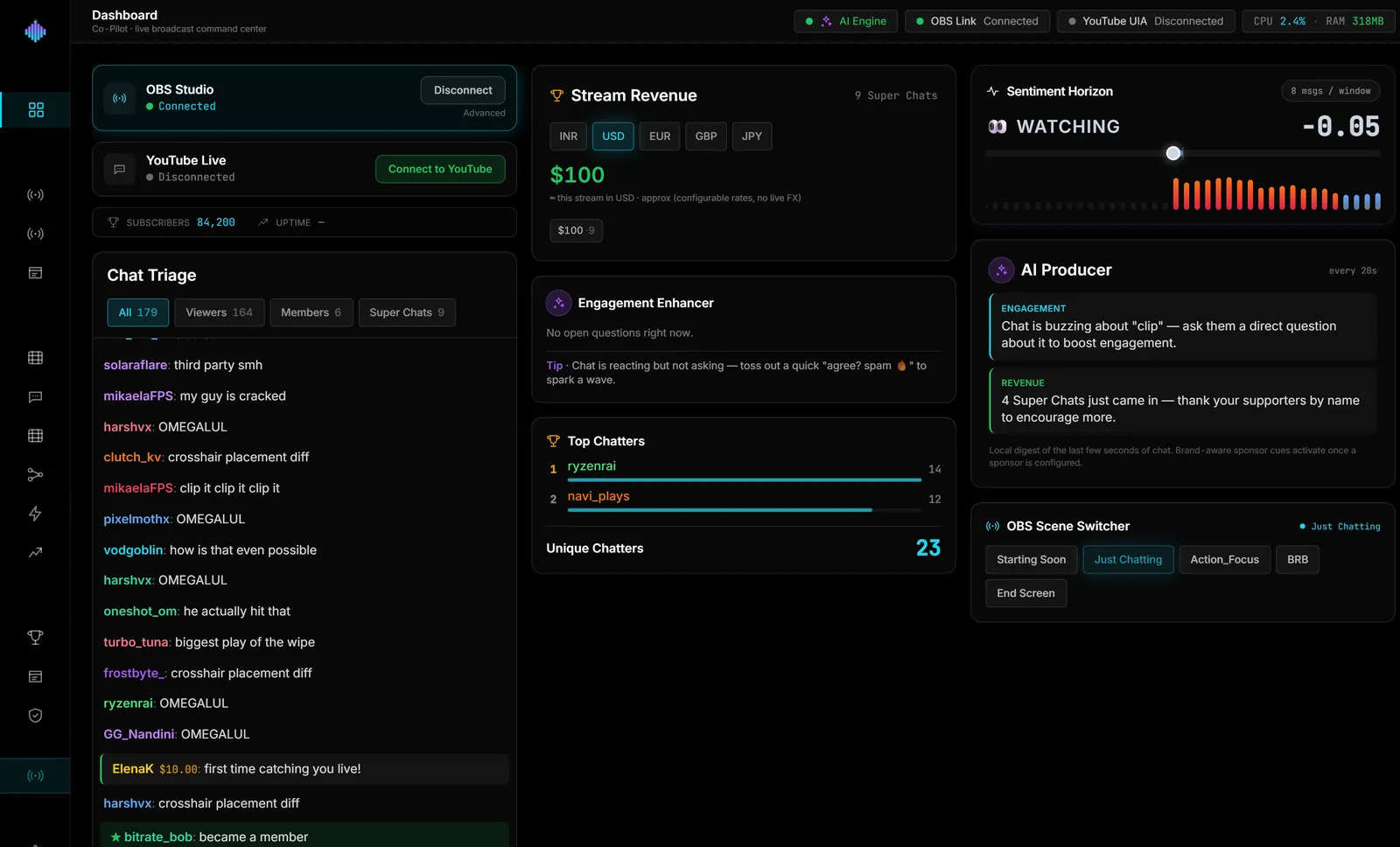
Switching to NVENC frees CPU — and then other tools take it back. Browser-based overlays, chat bots and dashboards all compete for the same cores as your game. Check what else is running before blaming the encoder; the full list of settings that cut CPU use is in Best OBS Settings for Low-CPU Streaming. If you add a companion app, pick one that stays out of the way: streamerOS, for example, runs its chat monitoring and scene automation at under 2% CPU, though it is Windows-only and launches in February 2027.
Frequently Asked Questions
Is NVENC better than x264 for streaming? On a single gaming PC with an RTX card, yes: similar quality at streaming bitrates without taking CPU from your game. On a dedicated streaming PC, x264 on a slower preset can look better.
Does NVENC lower my game's FPS? Slightly, because it uses a little GPU memory bandwidth, but far less than x264 costs on the CPU. Look-ahead and Adaptive Quantization add a bit more GPU load.
Should I use NVENC H.264 or AV1? AV1 is more efficient but needs an RTX 40-series or newer card and a platform that accepts it. YouTube accepts AV1; check your platform's current ingest guidance before switching, and keep H.264 if you are unsure.