Guides · OBS Studio · Clips · YouTube
How to Make YouTube Shorts From a Live Stream
By Yaseen Khatib · November 9, 2026
Record your stream to a high‑quality VOD in OBS, then cut a 20–60 second vertical (9:16) moment with a free editor like CapCut, DaVinci Resolve, Shotcut or FFmpeg. Export at 1080×1920 H.264 with your original frame rate, and upload; if it’s vertical and under 60s, YouTube classifies it as a Short.
That’s the whole flow. Below is each step in detail, why each step matters, and faster ways to find the best moments.
How to make YouTube Shorts from a live stream, step by step
1) Set up OBS so your VODs are Shorts‑ready
You can’t make clean Shorts from a muddy VOD. Before you go live:
- Record while you stream. In OBS, enable recording alongside streaming so you get a local file at higher, steadier quality than the processed VOD.
- Use MKV for recording format to protect against crashes. After the stream, remux to MP4 using OBS’s remux tool so every editor will accept it.
- Match or beat your stream quality. Record at the same resolution you stream (1080p is ideal) and the same frame rate you play at (30 or 60). A higher bitrate recording gives you more detail to crop.
- Prefer a hardware encoder if your GPU supports it. It keeps CPU headroom for your game and avoids dropped frames. If you’re tuning OBS for a modest PC, see the low‑CPU guide: Best OBS Settings for a Low-End PC (Low CPU, 2026)
- Keep layout “vertical‑aware.” Place your facecam and alerts where a center‑cut 9:16 crop won’t chop them. Avoid tiny text near the extreme left/right edges.
- Optional but helpful: Separate audio tracks (game, mic, music). It lets you duck or mute music later if a track is copyrighted.
Reasoning: Shorts magnify flaws. Recording cleanly means less sharpening, denoising and re‑encoding later, which preserves detail when you crop and scale.
2) Mark likely moments during the stream (simple methods)
You don’t need fancy tools to keep track of highlights:
- Jot timestamps in a notepad as they happen.
- Ask a mod to drop a message like “MARK 01:23:45 clutch” so you can search your chat log for “MARK” afterward.
- If your chat surges during hype, that spike is a clue. Chat velocity (messages per second) often lines up with clip‑worthy moments; learn what it looks like: What Is Chat Velocity? The Clip-Worthy Metric
3) Pull the best source file
You have two options:
- Use your local OBS recording. This is usually the best quality and edits smoothly.
- Or download the VOD from YouTube Studio if you didn’t record locally. Expect lower bitrate; still fine for most Shorts if you frame tightly.
Tip: Keep a tidy workspace with a Shorts folder so exports don’t get lost: How to Organise Your Streaming Folders: VODs, Clips, Exports
4) Edit a vertical 9:16 cut with free tools
Use whatever you’re fastest in. The core steps are identical across editors.
-
CapCut (Desktop, free):
- Create a 1080×1920 project.
- Drop your VOD on the timeline, crop/reframe to keep the subject centered.
- Optionally add a second crop for facecam picture‑in‑picture.
- Add subtitles or light text; keep fonts large.
-
DaVinci Resolve (Free):
- Create a vertical 1080×1920 timeline.
- Use Inspector to zoom and crop your gameplay region.
- If you want dual framing (game + face), duplicate the clip on another track and crop each layer.
-
Shotcut (Free):
- Set project to 1080×1920.
- Use filters to crop and size the region you want.
- Keep overlays big; mobile screens are small.
-
FFmpeg (Free, no GUI):
- If you’re comfortable with command line, you can crop and scale in one pass. It’s fast and consistent for batch work.
General editing tips:
- Length: 20–40 seconds is a sweet spot; under 60 seconds to qualify as a Short.
- Hook: Start with action. Cut breath and lobby time.
- Framing: Fill the frame with the subject. Empty space reads as “nothing’s happening.”
- Audio: Keep game and voice clear; music lower than live mix.
5) Export settings that won’t get muddy
- Resolution: 1080×1920 (vertical 9:16).
- Codec: H.264.
- Frame rate: Match your source (30 or 60).
- Bitrate: Use a high‑quality preset or a generous bitrate so YouTube’s re‑encode has good material. Clean input compresses better than a noisy one.
- File type: MP4 is widely compatible. If your editor prefers MKV, export and then remux to MP4.
6) Upload so YouTube recognizes it as a Short
- Keep it vertical (9:16) and under 60 seconds. Those two things are what matter.
- Title: Clear and human, front‑load the moment (“1v4 clutch with 2HP”).
- Description/hashtags: Helpful but optional for discovery. Don’t bury the hook under tags.
A fast, repeatable workflow you can use every week
- Go live with OBS recording enabled at good quality.
- Note timestamps or mentally tag hype with chat surges.
- After the stream, open your local VOD, scrub to the best two moments.
- Make one vertical cut each at 20–40 seconds.
- Export 1080×1920 H.264, same frame rate.
- Upload the same day while the moment is fresh.
The same steps work for a Twitch VOD: download it from your Video Producer page, or use your local OBS recording, then cut and export as above. TikTok and Instagram Reels take the same 1080×1920 vertical file.
Where most Shorts go wrong (and how to avoid it)
- The action is too small. Zoom more; use a tighter crop. It’s a Short, not a miniature TV.
- Dead first 3 seconds. Lead with the punchline or the setup line that makes viewers stay.
- Over‑designed captions. Big, legible, few words. Let the clip sell itself.
- Muddy exports. If your VOD is soft, re‑record at higher quality next time rather than over‑sharpening.
How streamerOS solves this for live‑stream Shorts
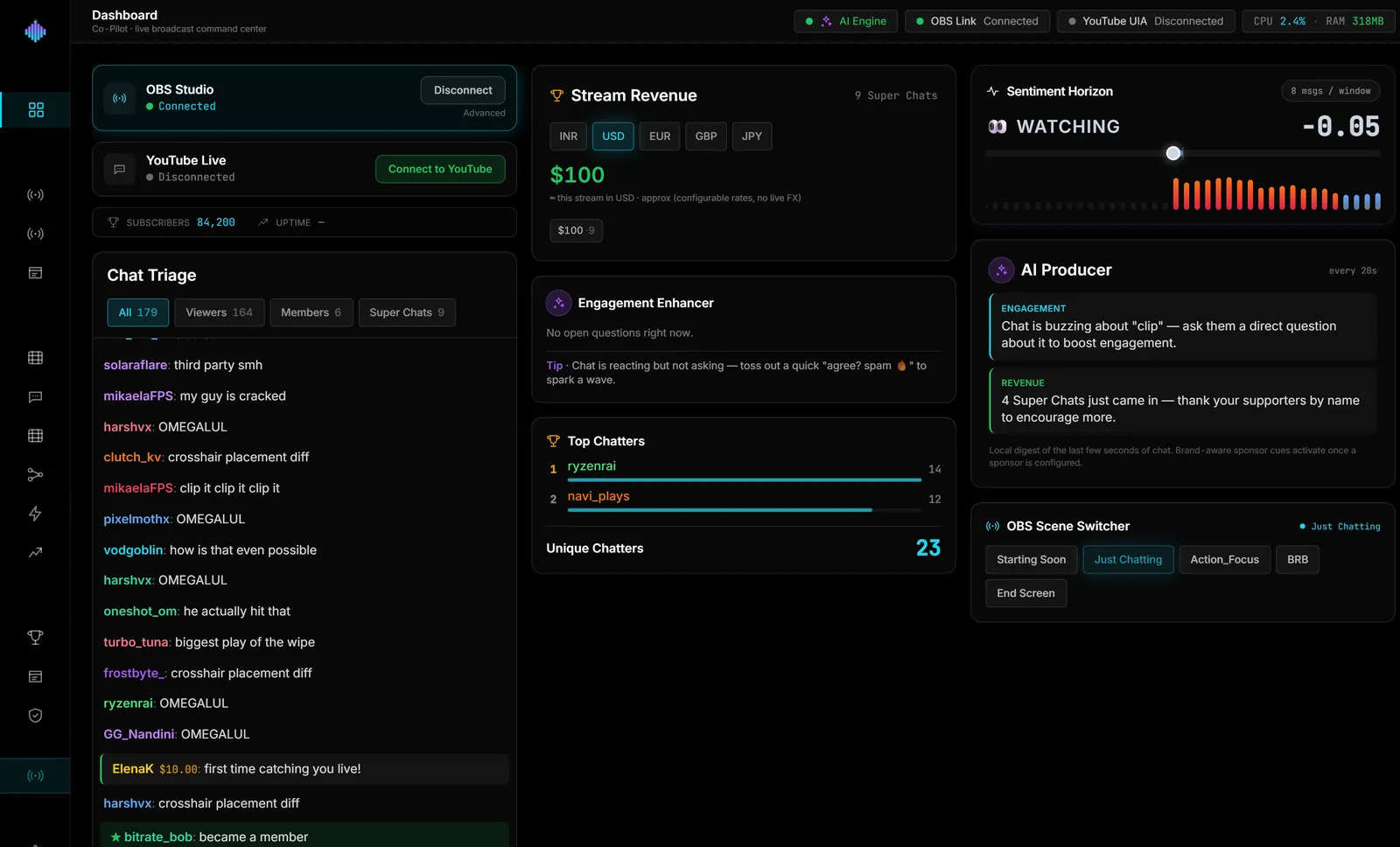
Shorts Factory crops a 16:9 stream recording to vertical 9:16 and encodes an MP4 on your PC. It uses your own hype timeline (from Viral Moments, which marks chat‑velocity spikes while you’re live) so you can jump straight to likely clips, and the Clip Library ranks your recordings by what chat did to help you choose. Exports land in your Shorts workspace folder. It doesn’t upload or post anywhere.
Honest limits: Windows only. It reads chat but never posts to it. It’s $29 once after the trial, not a subscription. Launches February 2027.
Two easy next steps: try the live demo in your browser at https://demo.streamerosai.com (nothing to install). Founding members — anyone who pre‑registers at pre-register before launch — get the beta first.
Frequently Asked Questions
-
What’s the best length for a YouTube Short from a stream?
- Under 60 seconds to qualify as a Short; 20–40 seconds tends to hold attention. Cut anything that isn’t setup or payoff.
-
Do I need to download my YouTube VOD to make a Short?
- You can use your local OBS recording (usually best) or download the VOD from YouTube Studio. Mobile in‑app tools can work in a pinch, but desktop editors give you full control of framing and audio.
-
How many Shorts should I post from one stream?
- Two to four strong moments beat ten average ones. Start with your highest‑energy clips (chat spikes are a good signal) and post within 24–48 hours while the memory is fresh.