Guides · OBS Studio · Automation · Twitch
How to Set an OBS Scene Switcher Hotkey
By Yaseen Khatib · November 16, 2026
To set an OBS scene switcher hotkey, open Settings > Hotkeys, find each scene’s Switch-to entry, click in the empty field, and press the key combo you want. Repeat for every scene you plan to switch to. If you want those hotkeys to work while your game is in focus, turn on the OBS Advanced option that keeps hotkeys active when OBS isn’t the foreground app. Test once live: tap the combo and confirm the Program scene changes.
Setting an OBS scene switcher hotkey
Here’s the reliable setup that most streamers use.
- Plan your scene map (2 minutes)
- List the scenes you actually switch to on-stream: Gameplay, BRB, Just Chatting, Cam Full, Desktop, etc.
- Give each a unique, easy-to-press combo (for example, Ctrl+Alt+1 for Gameplay, Ctrl+Alt+2 for Just Chatting, Ctrl+Alt+3 for BRB). Use modifiers to avoid clashing with your games.
- Assign the hotkeys in OBS (3 minutes)
- Open OBS Settings and go to Hotkeys.
- Scroll to each scene. Next to its Switch-to action, click the empty field and press your chosen combo. OBS will show it in the box.
- Optional: also bind Show/Hide for key sources you might need to toggle fast (webcam, alert browser source, music source). This keeps your fingers on one pattern.
- Make hotkeys work while gaming (1 minute)
- In OBS’s Advanced settings, enable the option that keeps hotkeys active when OBS isn’t focused. Different OBS versions word this slightly differently; look for hotkey focus behavior.
- Press Apply/OK.
- Test and lock it in (2 minutes)
- Start a private recording or a test stream.
- Tap each combo. Watch the live scene indicator highlight change immediately. If a combo doesn’t fire, change it to something your game or overlays don’t already use.
Practical key choices that avoid conflicts
- Use consistent patterns: Ctrl+Alt+Number for scenes; Ctrl+Shift+Number for source toggles.
- Avoid common overlay keys: Alt+Z (NVIDIA), Win+G (Xbox bar), Win+Alt+R (record), Push-to-talk, and anything your game binds.
- If your keyboard has extra buttons (F13–F24 or a numpad), lean on them with a modifier.
Make it bulletproof on stream
- Keep the list short. Three to five hotkeys you’ll actually remember beat ten you’ll forget.
- Tape a tiny cheat sheet near your monitor for the first week.
- If you change a hotkey mid-show, do it during a safe scene (BRB) and say it out loud to cement the memory.
Troubleshooting hotkeys that don’t fire
- Game or overlay conflict: If the combo does nothing, your game/overlay may be stealing it. Try adding another modifier (Shift) or pick a different number row.
- OBS not allowed to listen in the background: Revisit OBS Advanced hotkey focus behavior and enable background hotkeys.
- Keyboard layout surprises: If you stream in a layout that moves punctuation (e.g., international layouts), prefer number keys and letters.
- NumLock off: Numpad binds won’t fire consistently with NumLock disabled.
- Multiple instances: If you somehow have two OBS windows, only one will hear the hotkey. Close the duplicate.
Free ways to go beyond a single hotkey
If you want more than “press key, switch to scene,” these are solid and free.
-
Advanced Scene Switcher plugin: Build timers, window/title/idle triggers, and macros that end in a scene switch. It’s a great companion when you want automatic behavior alongside your manual hotkeys. See our setup and recipes: OBS Advanced Scene Switcher: Setup Guide and Macro Recipes
-
Macro/automation apps: SAMMI and Streamer.bot can call OBS scene switches and let one hotkey trigger a whole sequence (mute mic, play a stinger, then switch). If you’re deciding between them, start here: /vs/sammi and /vs/streamer-bot
-
AutoHotkey (Windows): Create a single key that sends different OBS hotkeys depending on context, or remap an awkward three-key combo to something your hand likes. Keep scripts simple so they don’t fight your games.
When to prefer plugins or automation over more hotkeys
- You regularly forget the right key in the heat of a boss fight.
- You want a “panic” key that mutes, hides the game capture, and cuts to Cam Full.
- You need your scene to change automatically when you alt-tab to another app. Start with our auto-switching walkthrough: How to Auto-Switch OBS Scenes, Including From Chat Activity
A safer layout for two hands
- Left hand: scene changes (e.g., Ctrl+Alt+1/2/3/4 on number row).
- Right hand: source toggles (e.g., Ctrl+Shift+F-keys) for camera, alerts, music.
- This split reduces misfires and keeps WASD free.
Good housekeeping for hotkeys
- Audit quarterly: Prune dead scenes and retire the binds.
- Name scenes clearly. Hotkeys are faster when your eye finds the right label in Hotkeys.
- Back up your OBS profile and scene collection. If you swap PCs or reinstall, you won’t rebuild by hand.
How this ties into automatic scene switching
Hotkeys are perfect for deliberate cuts and when timing is part of your style. Automation covers the rest: idle timers for BRB, switching on window focus, or moving to Gameplay when you unpause. Use hotkeys as the manual override that always wins, and automation for the boring parts. Keep both simple.
How streamerOS helps with scene switching (Windows only)
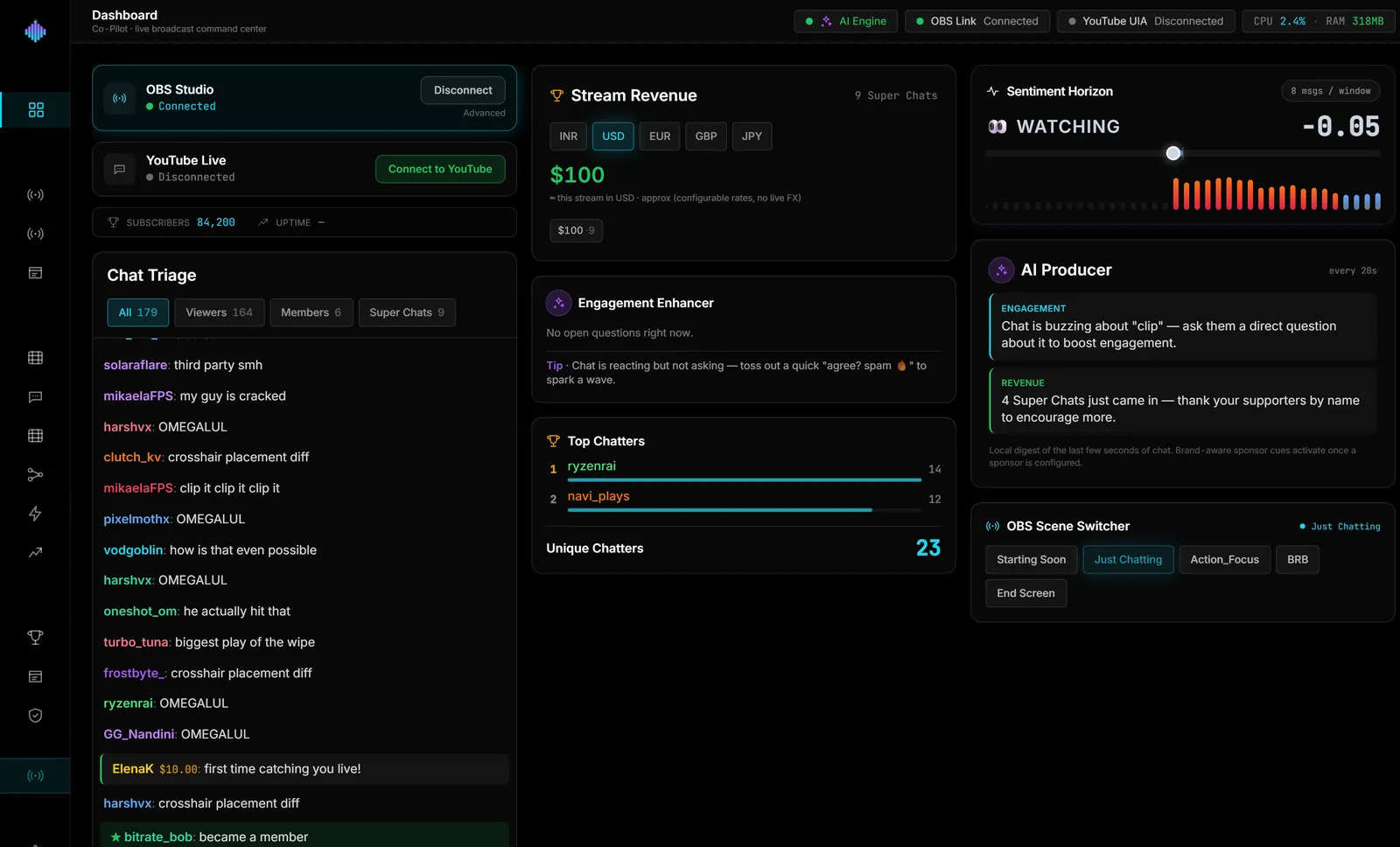
streamerOS sits next to OBS on Windows 10/11 and controls scenes over OBS WebSocket v5. In its live cockpit, your OBS scenes show up with the live one highlighted, and one click switches — no extra dock. Its Auto-Hype Director can also switch scenes automatically on two honest triggers you set: chat velocity or Super Chat amount. The app reads your chat locally and never posts to it.
Limits and details: Windows only; launches February 2027. After the trial, a licence is $29 one time — not a subscription. Want to see it first? Try the live demo in your browser at https://demo.streamerosai.com. Founding members — anyone who pre-registers at pre-register before launch — get the beta first.
Frequently Asked Questions
Can I make one key cycle through scenes? OBS is built around “switch directly to a specific scene.” If you want a single key to step through scenes or run logic, use a macro tool like SAMMI or Streamer.bot, or a plugin-driven macro in Advanced Scene Switcher.
My hotkeys work in OBS but not in-game. What did I miss? Turn on the OBS setting that keeps hotkeys active when the OBS window isn’t focused (found in Advanced). If it’s on already, pick a combo your game/overlays don’t claim.
Should I bind hotkeys for sources or only scenes? Do both, sparingly. A few source toggles (camera, alerts, music) save you from making extra micro-scenes. Keep them on a different modifier pattern so your fingers don’t collide.